How to Make a Slideshow on TikTok: Step-by-Step Guide (2026)
You do not need a separate editing app to create a TikTok slideshow. TikTok’s built-in Photo Mode lets you upload multiple pictures, arrange them into a swipeable post, add music, apply text or effects, and publish everything from your phone. This guide explains how to make a slideshow on TikTok using the native method, along with practical tips for creating, publishing, and tracking personal or product slides.
What Is a TikTok Slideshow (Photo Mode)?
A TikTok slideshow is a post made from multiple still images rather than one continuous video. TikTok officially calls this format Photo Mode, although creators also describe these posts as TikTok slides, photo carousels, or picture slideshows.
In Photo Mode, images appear in sequence and viewers can swipe through them at their own pace. Creators can add music, captions, text, filters, stickers, and other creative elements. According to TikTok’s introduction to Photo Mode, the format was designed for sharing high-quality photo content through a mobile carousel.
How to Make a Slideshow on TikTok Step by Step
The exact position of individual buttons may vary slightly depending on your device, location, and TikTok app version. However, the basic process remains the same.
- Open TikTok and tap the “+” button.
Launch the TikTok app and tap the Add Post button at the bottom of the screen. This opens TikTok’s content creation interface. - Select Photo or Upload mode.
Tap Photo, followed by Upload, to open your phone’s photo library. If TikTok asks for permission to access your photos, allow access before continuing. - Choose the photos for your slideshow.
Select the images in the order you want them to appear. TikTok currently allows up to 35 photos in one photo post, according to its official post creation guide. You do not need to use the maximum number—a shorter, more focused carousel is often easier to finish. - Confirm Photo Mode.
After selecting your images, tap Next. Make sure TikTok displays the post as a swipeable photo carousel rather than converting it into a standard video. Depending on your app version, you may see an option such as Switch to Photo Mode or Switch to Video Mode. - Add music or another sound.
Tap Add sound or Sound, search for a track, and select the section you want to use. Choose music that supports the mood of your images instead of adding a trending sound only because it is popular. - Review the sequence of your slides.
Check that your strongest image appears first and that the remaining slides follow a logical order. TikTok may also let you crop images, apply filters, or make basic visual adjustments. - Add text, stickers, filters, or effects.
Use short text overlays to explain each image, tell a story, highlight product benefits, or encourage viewers to continue swiping. Keep important text away from the bottom and right edges, where TikTok’s interface may cover it. - Choose a cover and write the caption.
Select a clear opening image, write a concise description, and add a few relevant hashtags. If the slideshow is a tutorial, comparison, list, or story, tell viewers what they will discover by reaching the final slide. - Review the settings and publish.
Check the audience, comment, privacy, disclosure, and content-reuse settings. When everything looks correct, tap Post. You can also save the slideshow as a draft and return to it later.
Making TikTok Slideshows at Scale for Sellers and Brands
Creating one slideshow manually is manageable. Producing separate slideshows for dozens or hundreds of SKUs is much slower. Every product may need a new cover, multiple selling-point slides, localized text, different image ratios, and several creative variations for testing.
An AI-assisted workflow can reduce this repetitive production work. The Oumomo TikTok Image Generator turns uploaded product photos and selling points into TikTok-oriented product visuals and detail-page assets. Sellers can then arrange the generated images into individual product slideshows without designing every slide from scratch.
When a video format is more suitable than a photo carousel, sellers can use Oumomo’s Viral Remake tool to analyze the hook, pacing, shot structure, and script logic behind successful TikTok commerce videos, then generate new content around their own products.
The goal is not to publish the same slideshow repeatedly. It is to produce enough visual variations to test different hooks, product angles, benefits, covers, and creative directions across a larger catalog.
Create Shoppable TikTok Slideshows Faster with Oumomo
For TikTok Shop sellers, creating the slideshow is often more time-consuming than publishing it. A single product may need a clean opening slide, lifestyle images, close-up details, feature demonstrations, different selling-point captions, and several creative variations for testing. Repeating that process manually across a large product catalog can quickly become difficult to manage.
The Oumomo TikTok Slideshow Maker is designed to turn one product photo into a complete set of images for TikTok Photo Mode. Sellers can upload a white-background product image, enter the product name and key selling points, and optionally describe the model, visual style, or scene they want.
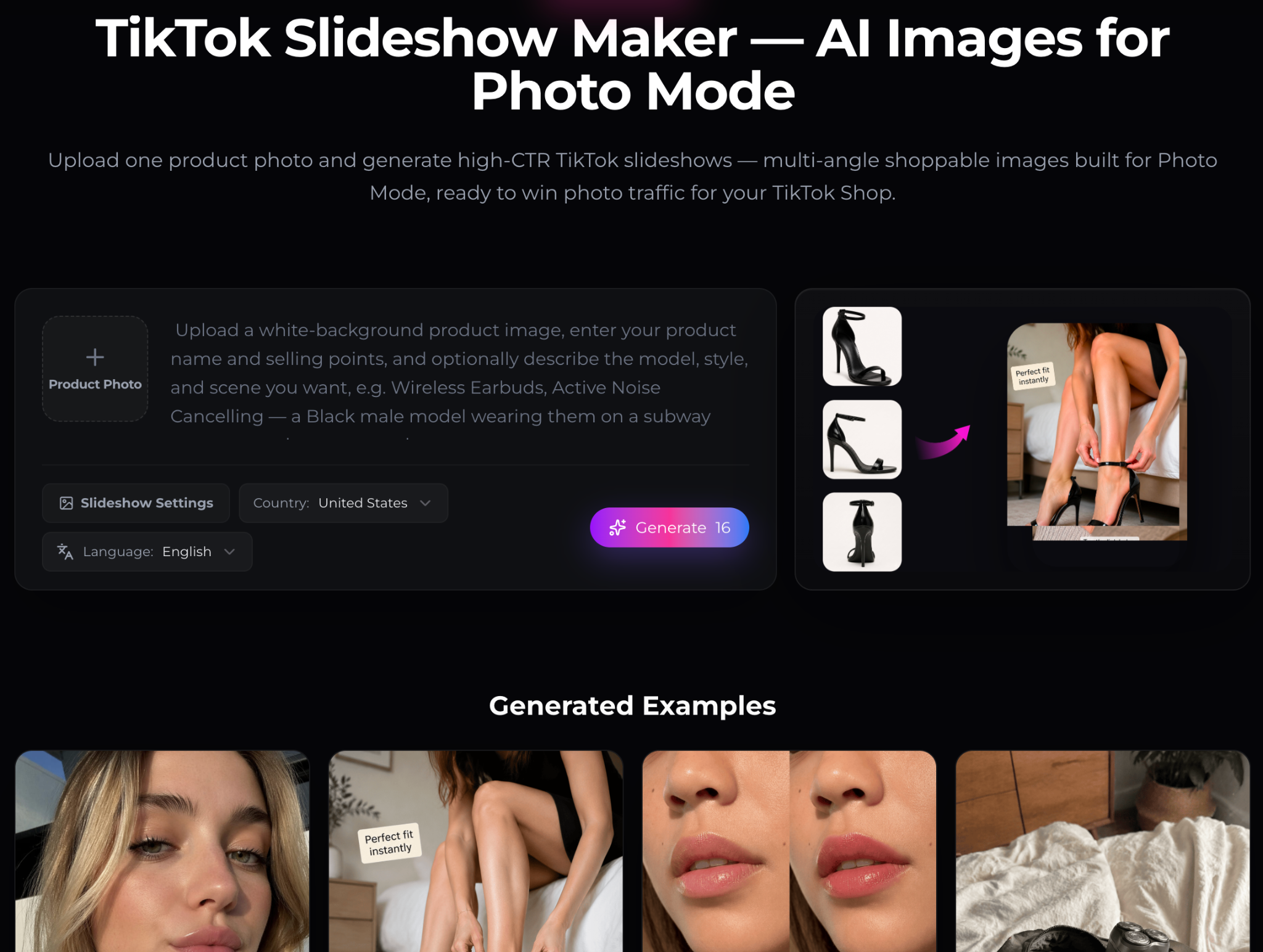
Oumomo then creates multiple product-focused images from different creative angles, including lifestyle scenes, close-up details, product benefits, and natural-looking demonstrations. Country and language settings also make it easier to prepare localized slideshow content for different TikTok Shop markets.
Unlike a generic image generator, this workflow is built around the way products are presented in TikTok Photo Mode. The resulting images can be arranged into a swipeable product story:
- Start with an attention-grabbing lifestyle image.
- Show the product from a useful angle.
- Highlight one key benefit on each slide.
- Add a close-up or practical demonstration.
- Finish with a clear product-focused call to action.
Once the slideshow is ready, eligible creators and sellers can attach the relevant product link in the TikTok App or publish and manage shoppable content through TikTok Shop Seller Center.
Examples of AI-Generated TikTok Slideshow Images
The most effective product slides do more than place an item on a decorative background. Each image should communicate a specific reason to notice, trust, or consider the product. Here are two examples of how Oumomo can turn basic product information into social-native slideshow visuals.
Example 1: Turning a Product Detail into a Fashion Hook
For a pair of black patent heels, a simple white-background image shows the product clearly but does not communicate how it looks when worn. Oumomo can place the product in a relevant lifestyle scene and build the slide around a visible product detail.
In this example, the nighttime street setting creates a polished fashion mood, while the short caption—“Perfect patent leather shine”—directs attention to the glossy finish. The product remains the focus, but the image feels closer to a fashion creator’s post than a traditional catalog advertisement.
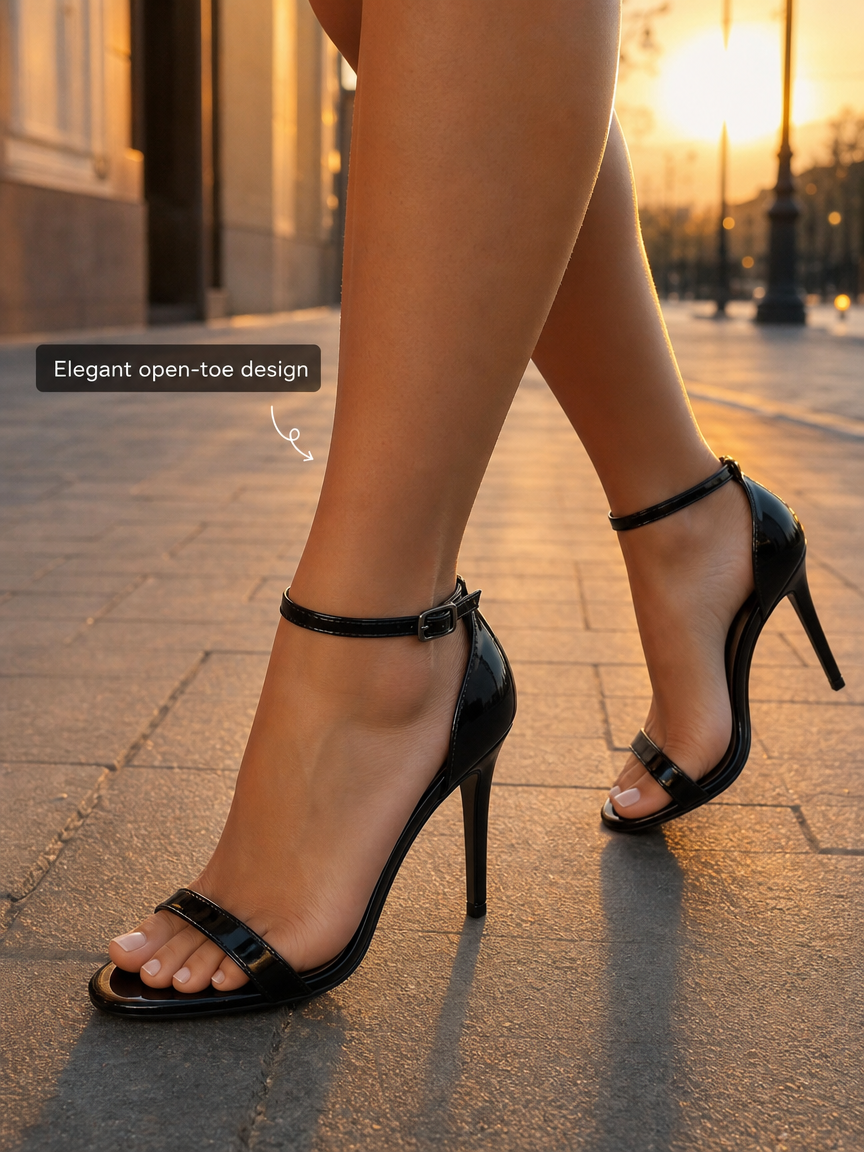
This type of slide can work well as an opening hook because it immediately shows the product in use. The next slides could continue with a close-up of the heel, a side-angle product view, a styling idea, and a final shoppable product slide.
Example 2: Showing a Product Benefit in Action
Feature claims are usually more persuasive when viewers can see the product being used. For an electric shaver, saying that it is easy to clean is less engaging than showing the cleaning process directly.
This example presents the shaver under running water with the simple caption “so easy to clean.” The image communicates the benefit quickly without requiring a long explanation, making it suitable for fast-scrolling TikTok users.

A complete slideshow for this product could begin with the shaver in a morning routine, continue with a close-up of the shaving heads, show the cleaning scene, and finish with the product and its main selling points. This turns several isolated images into one clear product story.
From Product Photo to Shoppable TikTok Post
Oumomo gives sellers a more efficient way to move from a basic product image to a complete TikTok Photo Mode creative. Instead of designing every slide individually, sellers can generate multiple visual directions, choose the strongest images, arrange them into a carousel, and connect the finished post to the relevant TikTok Shop product.
This is especially useful when testing several SKUs or creative angles. One product can be presented through a lifestyle hook, a feature-led slideshow, a problem-and-solution sequence, or a visual demonstration. Sellers can then compare performance in TikTok Studio or Seller Center and use the results to improve future slideshows.
How to Publish a Product Slideshow on TikTok
A standard TikTok slideshow can be published directly from Photo Mode. For affiliate creators and TikTok Shop sellers, there is one additional step: connecting the post to the correct product.
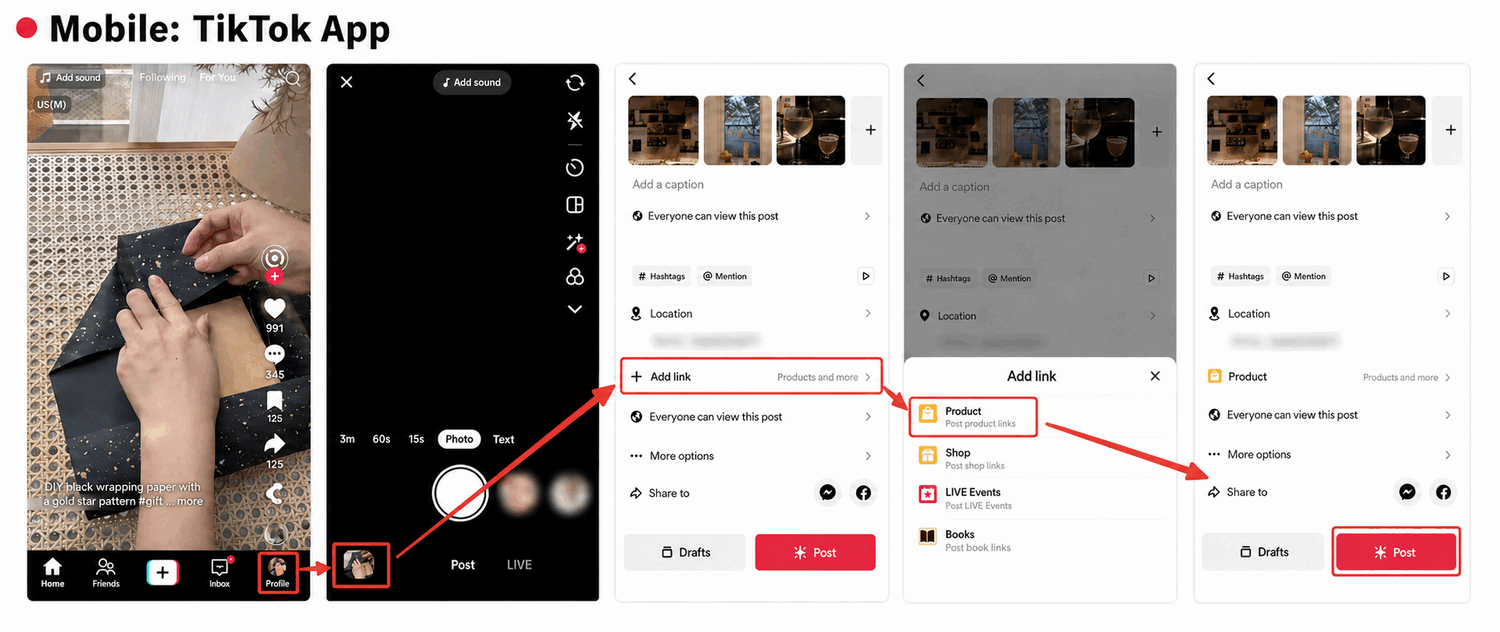
The available publishing options may depend on your country, account type, TikTok Shop access, and product permissions.
Publish and Add a Product in the TikTok App
After selecting your product images and preparing the slideshow, continue to the publishing screen. Add a caption, hashtags, location, and other post information as needed.
To attach a product, tap Add link, select Product, and choose the relevant item from your available product list. Review the product connection before tapping Post. Attaching the correct product allows viewers to move from the slideshow to the product detail page.
If the Product option does not appear, confirm that the account has access to TikTok Shop for Creator or the appropriate affiliate features. Product availability may also depend on whether the item is active and eligible for promotion.
Publish Shoppable Content from Seller Center
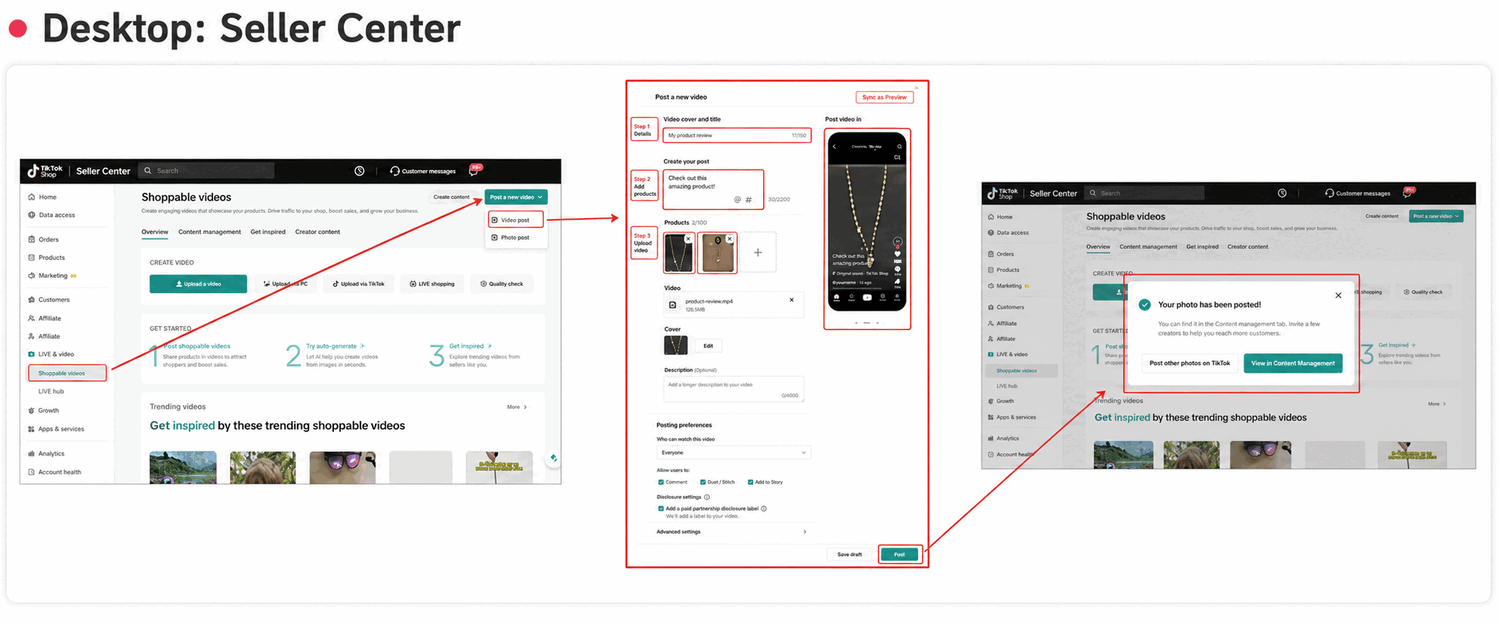
Sellers can also manage shoppable content from TikTok Shop Seller Center. Open Shoppable videos, choose Create content, and select the appropriate publishing format. Depending on the options available to your account, the menu may include a video post, photo post, or other content type.
Add the title or caption, select the relevant product, upload the creative assets, choose the cover, review the disclosure and posting preferences, and submit the content. After the post is processed, Seller Center provides a confirmation and a link to Content Management.
The Seller Center interface may vary by market and account. Before posting, check the preview carefully and confirm that the correct SKU, caption, cover, and product link have been selected.
How to Track TikTok Slideshow Performance
Publishing a slideshow is only the first step. You also need to understand whether people are discovering the post, swiping through the images, interacting with the content, and clicking the linked product.
The metrics available to you may depend on your location, account type, TikTok Shop eligibility, and app version.
View Photo Post Performance in the TikTok App
Creators can review photo post performance through TikTok Studio. The typical navigation path is:
TikTok Studio → TikTok Shop for Creator → Videos → Manage → View details
Open your TikTok profile and enter TikTok Studio. Select TikTok Shop for Creator, go to the Videos section, switch to Manage, and find the relevant photo post. Tap View details to review the information available for that post.
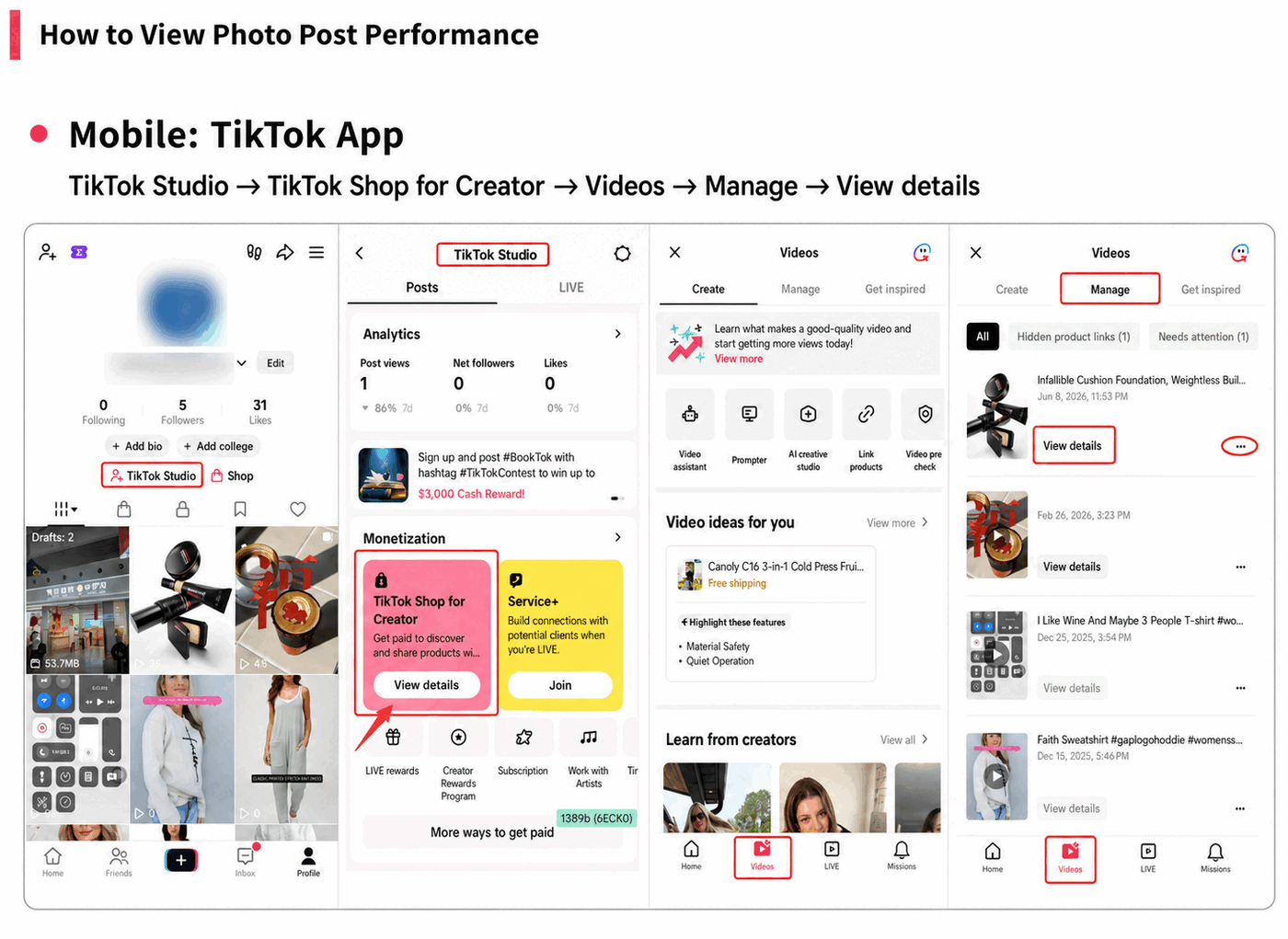
The most useful metrics depend on your goal. Creators may focus on views, likes, follower growth, and engagement, while affiliate creators should also pay attention to product clicks and sales-related performance where available.
Do not analyze views in isolation. A slideshow that attracts fewer views but produces stronger product interest may be more valuable than a widely viewed post that generates no clicks.
View Photo Post Performance in Seller Center
TikTok Shop sellers can review product photo content through the desktop Seller Center. The typical navigation path is:
TikTok Shop Seller Center → Shoppable videos → Content management → Photo
Open Shoppable videos from the Seller Center sidebar, select Content management, and switch from the Video tab to Photo. The dashboard can display published photo posts alongside information such as linked products, release time, GMV, click-through rate, views, and SKU data.
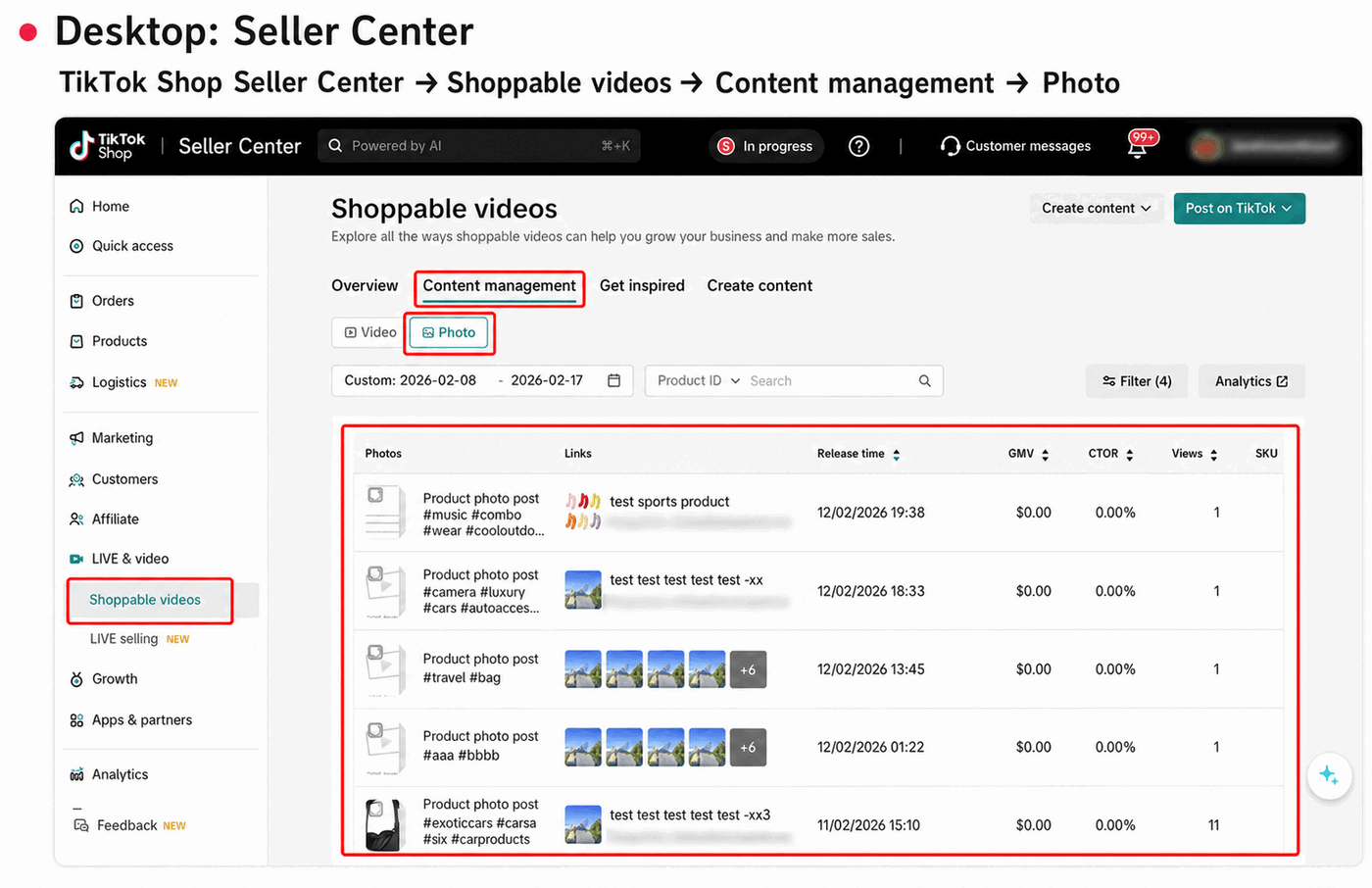
Compare several posts from the same product category and look for repeatable patterns. Useful questions include:
- Which cover image produces the strongest click-through rate?
- Do product-focused hooks outperform lifestyle hooks?
- Which slide order leads to more product interest?
- Does a short carousel perform better than a longer one?
- Which visual style generates both views and sales?
These comparisons are more useful than judging the performance of one slideshow without context.
FAQ
Can you make a slideshow on TikTok?
Yes. TikTok’s built-in Photo Mode lets you select multiple images, arrange them into a carousel, add music and creative elements, and publish the result directly from the mobile app. You do not need a separate slideshow application for a basic photo post.
How many photos can a TikTok slideshow have?
TikTok’s current Help Center states that you can add up to 35 photos to one photo post. The best number depends on the story you are telling. A focused slideshow with fewer, stronger images may perform better than a long carousel with unnecessary slides.
How do you make a TikTok slideshow with music?
Tap the + button, choose Photo, upload your images, and select Add sound. Search for a track, choose the section you want, preview the slideshow, and then publish it. If you need multiple audio tracks or exact image-to-beat timing, create a video slideshow before uploading.
Can you add a product link to a TikTok slideshow?
Eligible TikTok Shop creators can add a product from the publishing screen by selecting Add link → Product. Product-linking options depend on account eligibility, market availability, and whether the product has been approved for promotion.
Why can’t I make a slideshow on TikTok?
If Photo Mode is missing or not working, update TikTok to the latest version and restart the app. Check whether TikTok has permission to access your photo library, try selecting only still images, reduce the number of uploaded files, and switch between Photo Mode and Video Mode.
Some features may also differ by region, device, app version, or account. If the issue continues, open Settings and privacy → Report a problem inside TikTok.
Where can I see TikTok slideshow analytics?
Creators can check available post information through TikTok Studio and the Manage section of TikTok Shop for Creator. Sellers can review product photo posts through Seller Center → Shoppable videos → Content management → Photo.
For more questions about generating TikTok commerce content, visit the FAQ section on Oumomo’s Viral Remake page.
Start Creating Better TikTok Slideshows
TikTok Photo Mode makes it easy to turn a group of images into a swipeable slideshow: open the app, upload your photos, arrange them, add music and text, and publish. The strongest slideshows combine a clear opening hook, vertical visuals, consistent formatting, and a reason to keep swiping.
For product content, connect the correct listing before publishing and use TikTok Studio or Seller Center to compare different covers, slide orders, product angles, and hooks. Sellers managing a larger catalog can use the Oumomo TikTok Image Generator to produce product visuals more efficiently, while Viral Remake helps turn proven TikTok creative structures into original product videos.