A TikTok slide show is one of the simplest ways to turn product photos into content. The problem is that most sellers do not have enough useful images for a full post. They may have one clean catalog photo, but no close-ups, lifestyle scenes, or alternate angles.
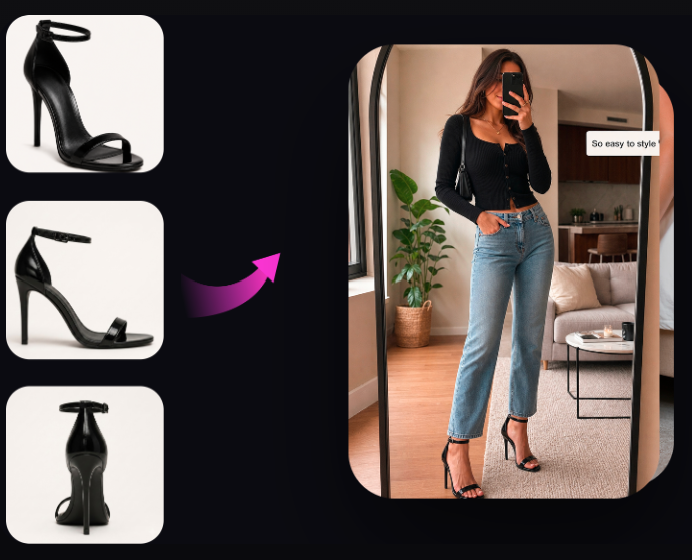
Oumomo’s TikTok Slideshow Maker starts with that single product photo. It generates a set of images you can review, arrange, and publish through TikTok Photo Mode. You can create product angles, clean-background shots, lifestyle images, and poster-style slides without organizing a new photoshoot for every post.
What is a TikTok slide show?
A TikTok slide show is a Photo Mode post made from multiple swipeable images. Viewers move through the slides at their own speed instead of watching a fixed video. You can also add music, text, filters, and a caption.
People use several names for the same format, including TikTok slideshow, photo carousel, and Photo Mode. We use TikTok slide show throughout this guide, but all of these terms refer to TikTok’s image-based Photo Mode format.
For product sellers, the format works well when the item can be understood through still images. A shopper can pause on a close-up, compare colors, read a benefit, or look at the packaging without replaying a video.
Why one product photo is usually not enough
One catalog image can identify the product, but it rarely gives someone a reason to keep swiping. A useful carousel needs variation.
For example, a product slide show might include:
- A cover image with the main benefit
- A clean view of the product
- A close-up of an important detail
- A lifestyle scene that shows where the product fits
- A size, color, or packaging reference
- A final slide with a clear next step
Shooting all six images manually gives you control, but it also takes time. You need the product, lighting, props, a location, and someone to edit the results. That is manageable for a hero campaign. It becomes slow when you need fresh TikTok content for many products or several creative tests each week.
What Oumomo creates from one product image
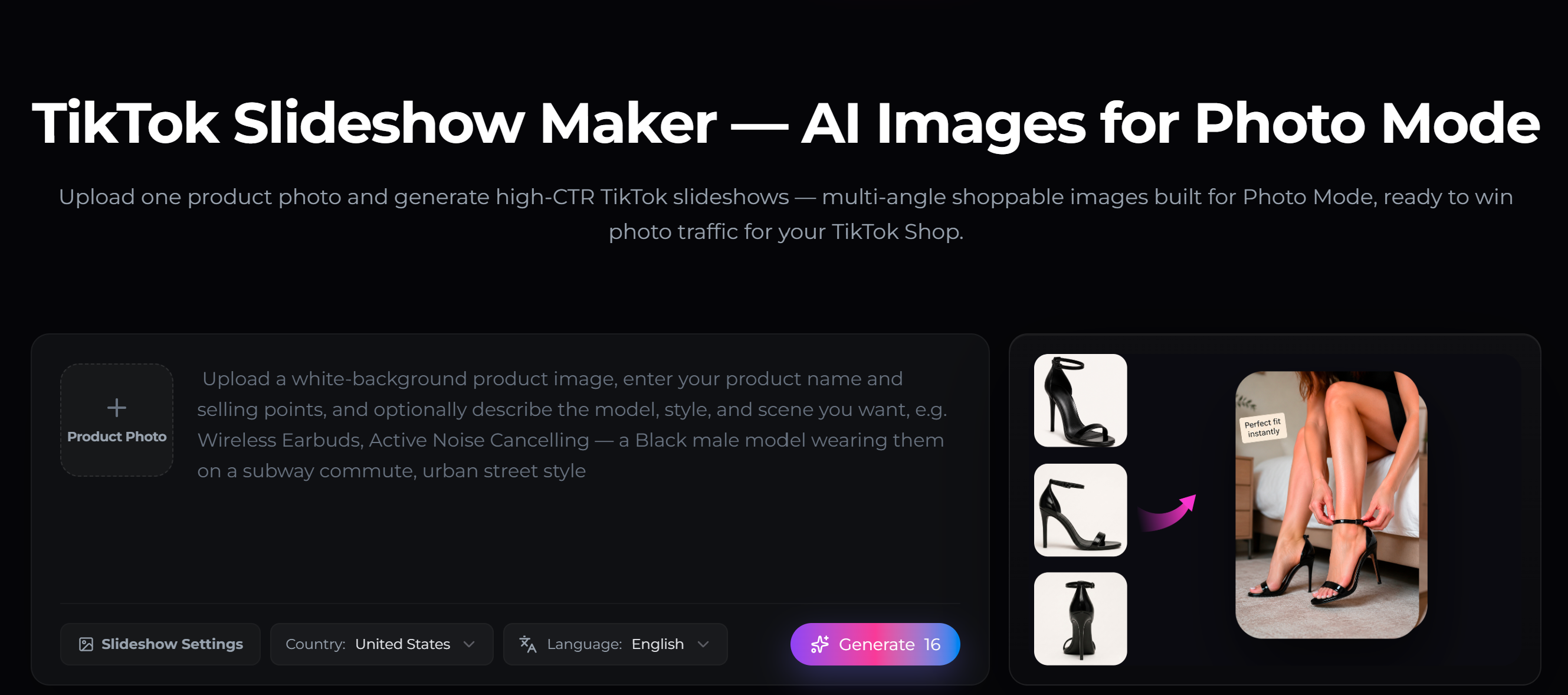
Oumomo’s TikTok slide show maker uses one clear product photo as its visual reference. You can add the product name, selling points, and a short description of the style or scene you want.
The tool can create several types of slides:
- Multi-angle product views
- Clean-background images
- Lifestyle and in-use scenes
- Detail-focused close-ups
- Poster layouts with short product copy
This gives you more material to work with, but it does not remove the need for review. AI can change a label, color, accessory, or small product detail. Compare every generated image with the real item before you publish it.
How to create a TikTok slide show with Oumomo
1. Choose a clear source image
Use a photo where the product is fully visible and easy to identify. A white or uncluttered background usually gives the generator a cleaner reference.
Avoid screenshots, collages, blurry photos, or images where a hand covers an important part of the product. If the source image hides a detail, the generated slides may guess what it looks like.
2. Upload the image and describe the product
Open the Oumomo TikTok Slideshow Maker and upload the source photo. Add the product name and two or three selling points that matter to the buyer.
You can also describe the setting. For example:
Compact travel coffee maker. Show it on a hotel desk and inside a carry-on bag. Use warm morning light and a simple travel style.
That prompt is more useful than asking for a “beautiful product image.” It tells the tool what the product is, where it belongs, and what the slide should communicate.
3. Select the country and language
Choose the market and language that match your TikTok audience. This is especially important when the generated slides include poster text or product benefits.
Keep the copy short. One clear idea per slide is easier to read on a phone than a list of every product feature.
4. Generate several options
The first batch is a starting point. Look for images that serve different purposes rather than choosing five versions of the same composition.
A practical mix might be:
- One strong cover
- One clean product image
- Two lifestyle or use-case images
- One close-up
- One final product or CTA slide
5. Check the product details
Zoom in before you approve a slide. Check the logo, product shape, controls, packaging, included accessories, and any text shown in the image.
If the tool adds an attachment that is not included or changes the color of the real product, do not publish that slide. A visually polished image is still a bad asset if it creates the wrong expectation.
6. Put the slides in a useful order
Do not arrange the images only by how attractive they look. Start with the reason someone should care, then give them enough detail to understand the product.
A reliable order is:
Hook, product, benefit, use case, detail, next step.
This is a starting structure, not a fixed rule. A fashion product may lead with a full outfit. A kitchen tool may lead with the finished result. A small electronic product may need a size comparison early in the post.
7. Publish through TikTok Photo Mode
Open TikTok, tap +, and choose Photo. Upload the images in the order you prepared them, then add music, a caption, and any final text.
If your TikTok Shop account can tag products in Photo Mode, add the relevant product before publishing. If that option is not available, you can still publish the same images as a regular TikTok slide show.
Sellers who manage content at scale can also use Oumomo’s TikTok Official API Publishing workflow.

Example: a six-slide travel coffee maker post
| Slide | Image | On-image message |
|---|---|---|
| 1 | Fresh coffee beside the product | “Coffee before the hotel lobby opens” |
| 2 | Clean product view | “A compact brewer for travel days” |
| 3 | Product inside a carry-on bag | “Small enough to pack” |
| 4 | Coffee maker in use | “Brew at your desk” |
| 5 | Close-up of the cup and controls | “Simple setup, fewer loose parts” |
| 6 | Product with available colors | “See colors and current availability” |
This post does not try to explain everything. It starts with a familiar travel problem, shows the product in context, and answers the practical questions that follow.
How to make more than one version
You do not need to rebuild the entire TikTok slide show every time you test a new idea. Keep the product and detail slides, then change the cover and the order.
For the same travel coffee maker, you could test:
- A problem-led cover: “Hotel coffee again?”
- A use-case cover: “Coffee that fits in your carry-on”
- A product-led cover: “A compact brewer for frequent travelers”
These are three different reasons to stop and swipe. If one version brings more product clicks or sales, use that angle in the next slide show or video.
Manual photography vs. an AI TikTok slide show maker
| Manual photography | AI slide show generation | |
|---|---|---|
| What you need | Product, camera, lighting, props, location | One clear product photo |
| Time | Often hours or days | Initial options in minutes |
| Control | High control over every detail | More variation, but every image needs review |
| Best use | Hero campaigns and final brand assets | Fast concepts, angle testing, and content variations |
AI does not have to replace your real product photography. A good workflow is to use an accurate hero image from a real shoot, then use Oumomo to explore more slide show concepts from that source.
TikTok slide show mistakes to avoid
- Do not repeat the same image with slightly different crops.
- Do not cover the product with long blocks of text.
- Do not use an AI image that changes the item or its accessories.
- Do not mix unrelated visual styles in the same post.
- Do not leave the strongest image until the final slide.
- Do not judge the post by views alone. Look at swipes, clicks, and sales where those metrics are available.
Frequently asked questions
Is TikTok slide show the same as TikTok slideshow?
Yes. They are two spellings of the same term. TikTok officially calls the image format Photo Mode, while users often search for “TikTok slide show,” “TikTok slideshow,” or “TikTok photo carousel.”
How many images should I use?
Start with five or six images that each add something new. TikTok Shop requires at least two images when product tagging is available, but recommendations vary by market. Your own swipe, click, and sales data should decide the final count.
What image size works best?
Use a vertical 9:16 layout for a full-screen mobile presentation. Keep important copy and product details away from the screen edges, where TikTok interface elements may cover them.
Can I use AI-generated product images?
Yes, but the images must accurately represent the product and follow TikTok’s current AIGC and commerce content rules. Review every generated slide before publishing.
Can I use the same product photo for video content?
Yes. You can reuse the source image with Oumomo’s Viral Remake or Viral Script Generator when you want to turn the same product angle into video.
Make a TikTok slide show from one product photo
You do not need a large photo library to start. Choose one accurate product image, generate several useful variations, and keep only the slides that match the real item.
Try Oumomo’s TikTok Slideshow Maker to create multi-angle views, clean product images, lifestyle scenes, and poster-style layouts for your next TikTok slide show.