Oumomo — An AI Video Creation Platform for TikTok Sellers and Creators
User Guide
Product Overview
Content Creation
- • Viral Video Remake
- • Viral Script Generator
- • Link to Video
Video Optimization & Publishing
- • Unoriginal Fix Tool
- • Video Quality Rating
- • TikTok Official Publishing
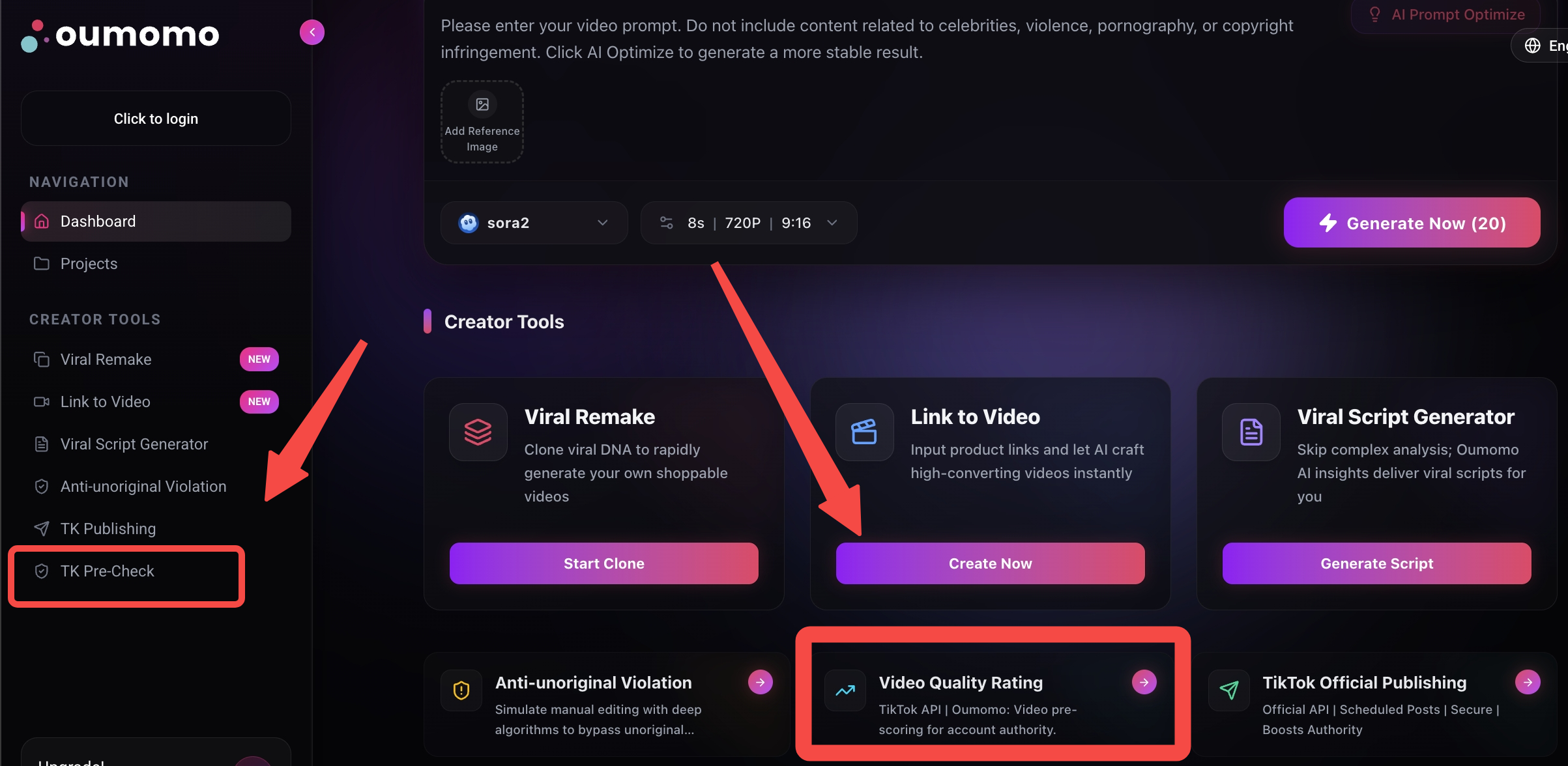
Entry Points
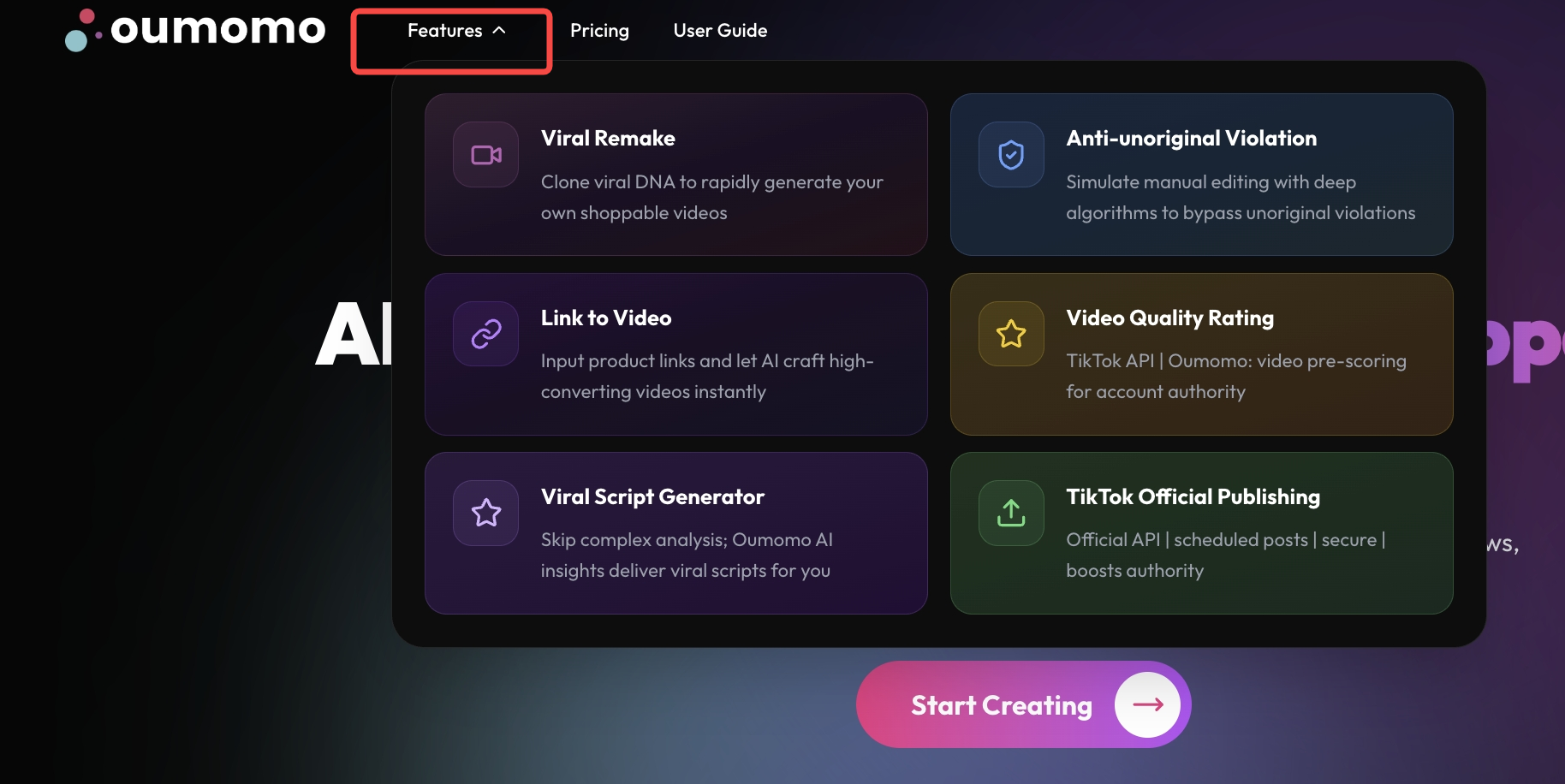
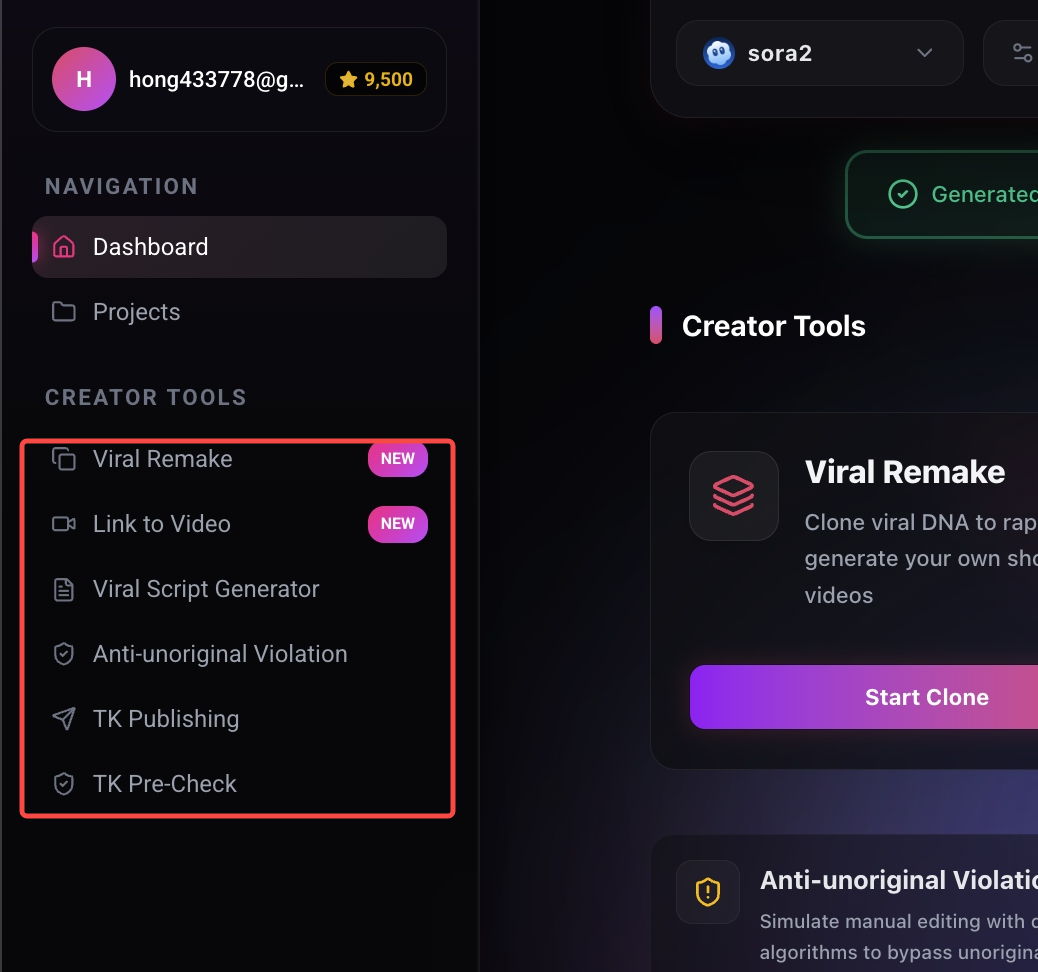
Click "Features" in the top navigation bar to open the feature cards. Click any card to enter the corresponding page.
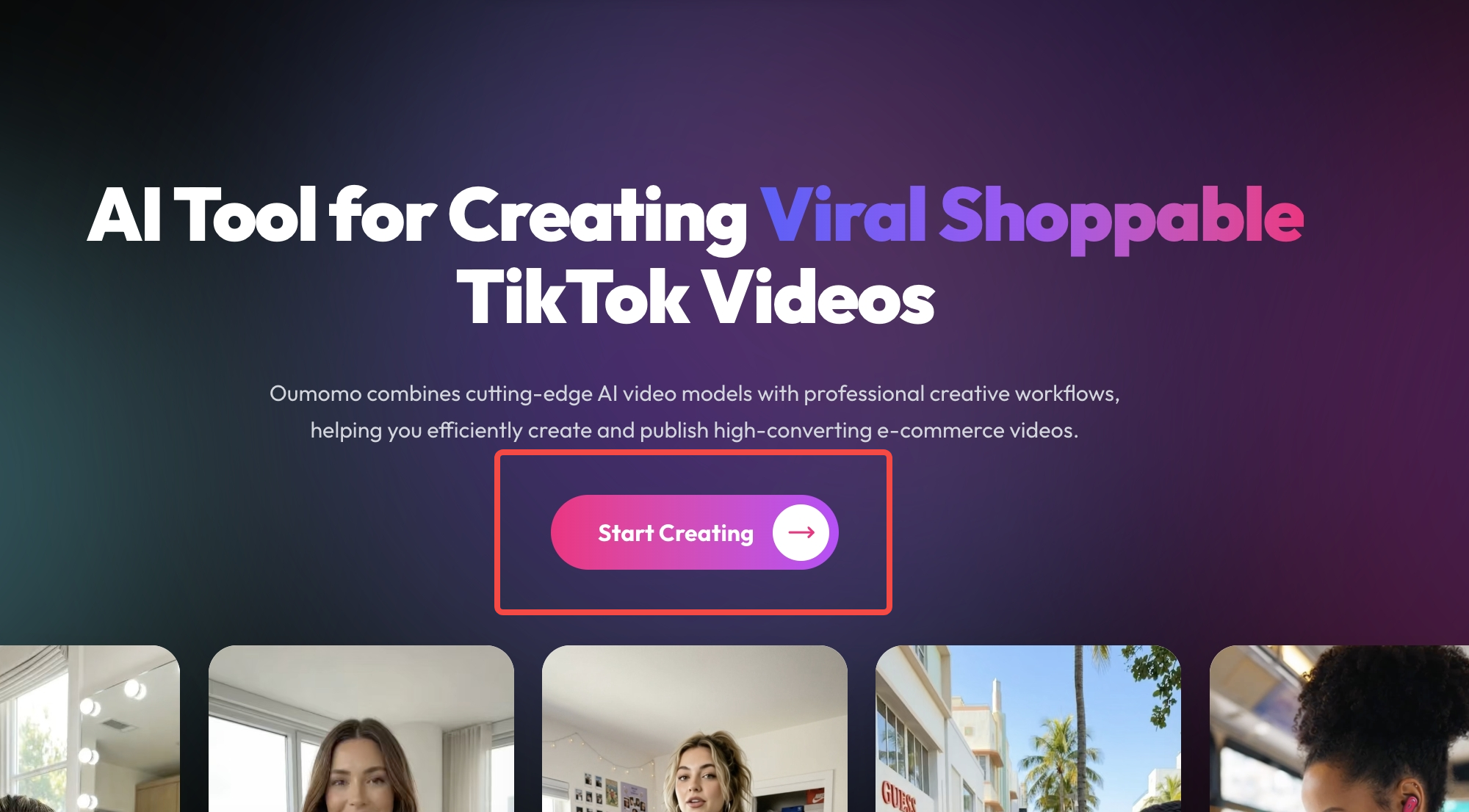
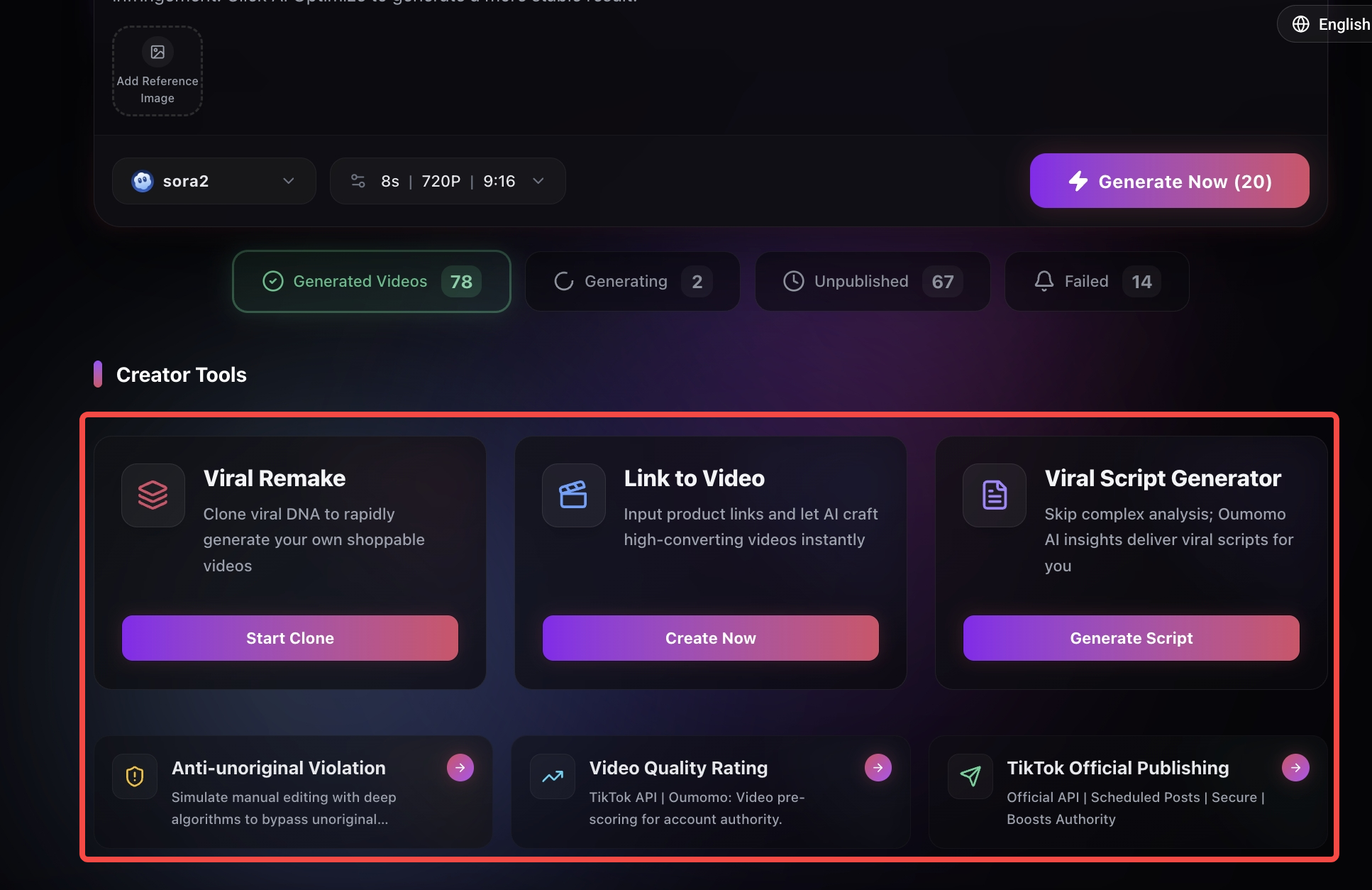
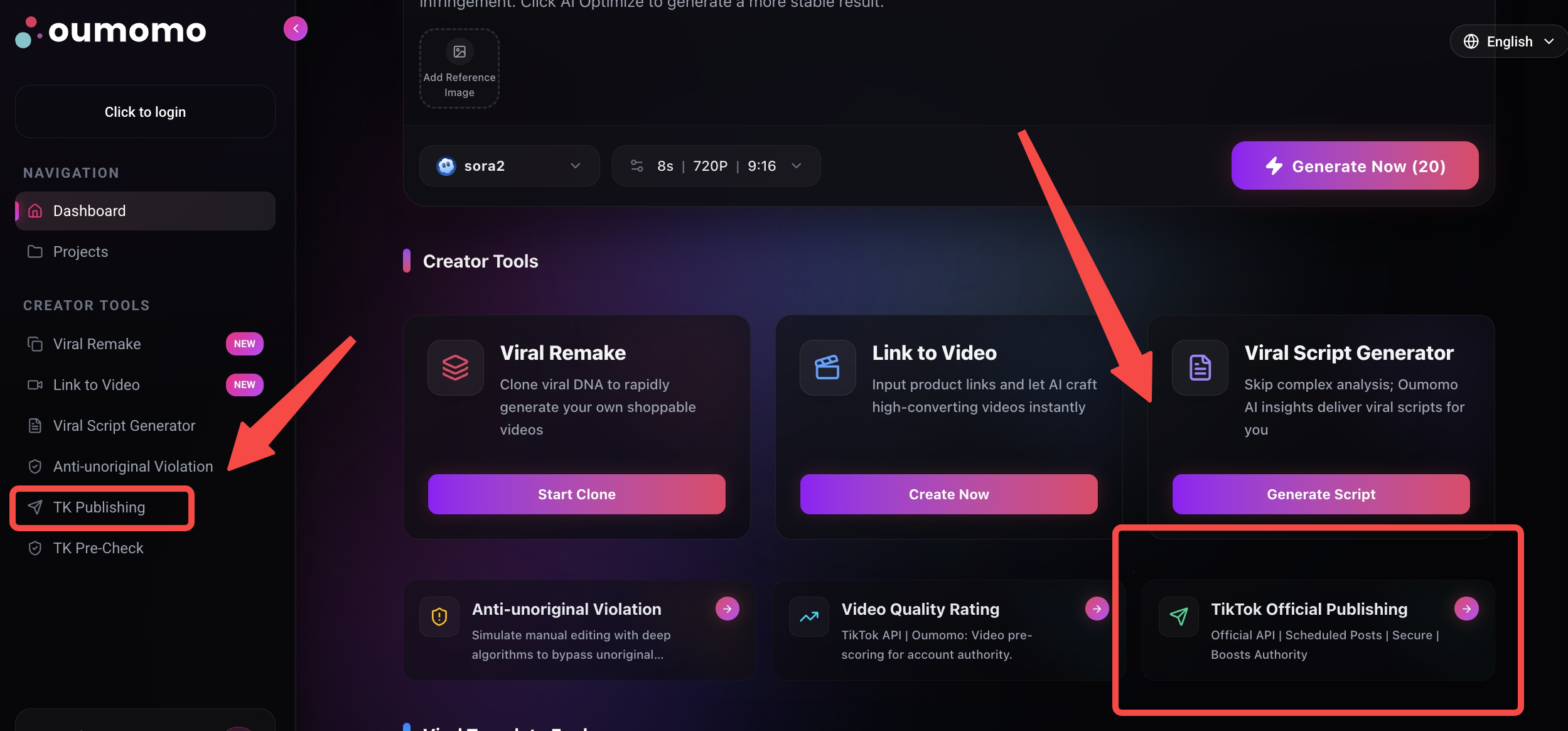
Click "Start Creating" in the center of the homepage to enter the Creator Center. In the "Creator Tools" section, click any card to enter the desired function.
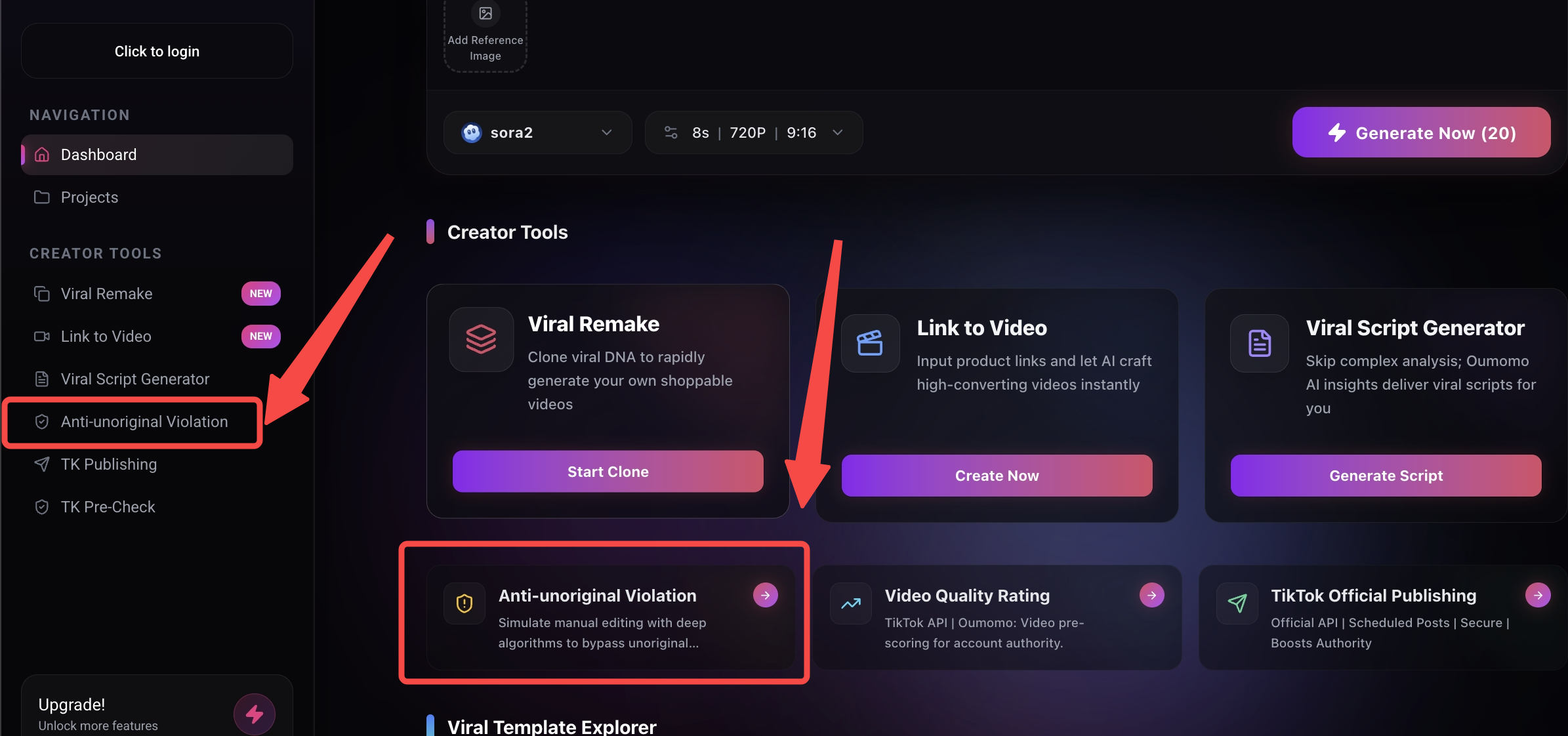
Once inside the Creator Center, you can also access these features from the left sidebar.
Function Guide
Viral Video Remake
Step 1: Select the viral video you want to remake
Method 1: Paste Link
Paste a product promotion video link from FastMoss or TikTok into the search bar, then click "Start Remake".
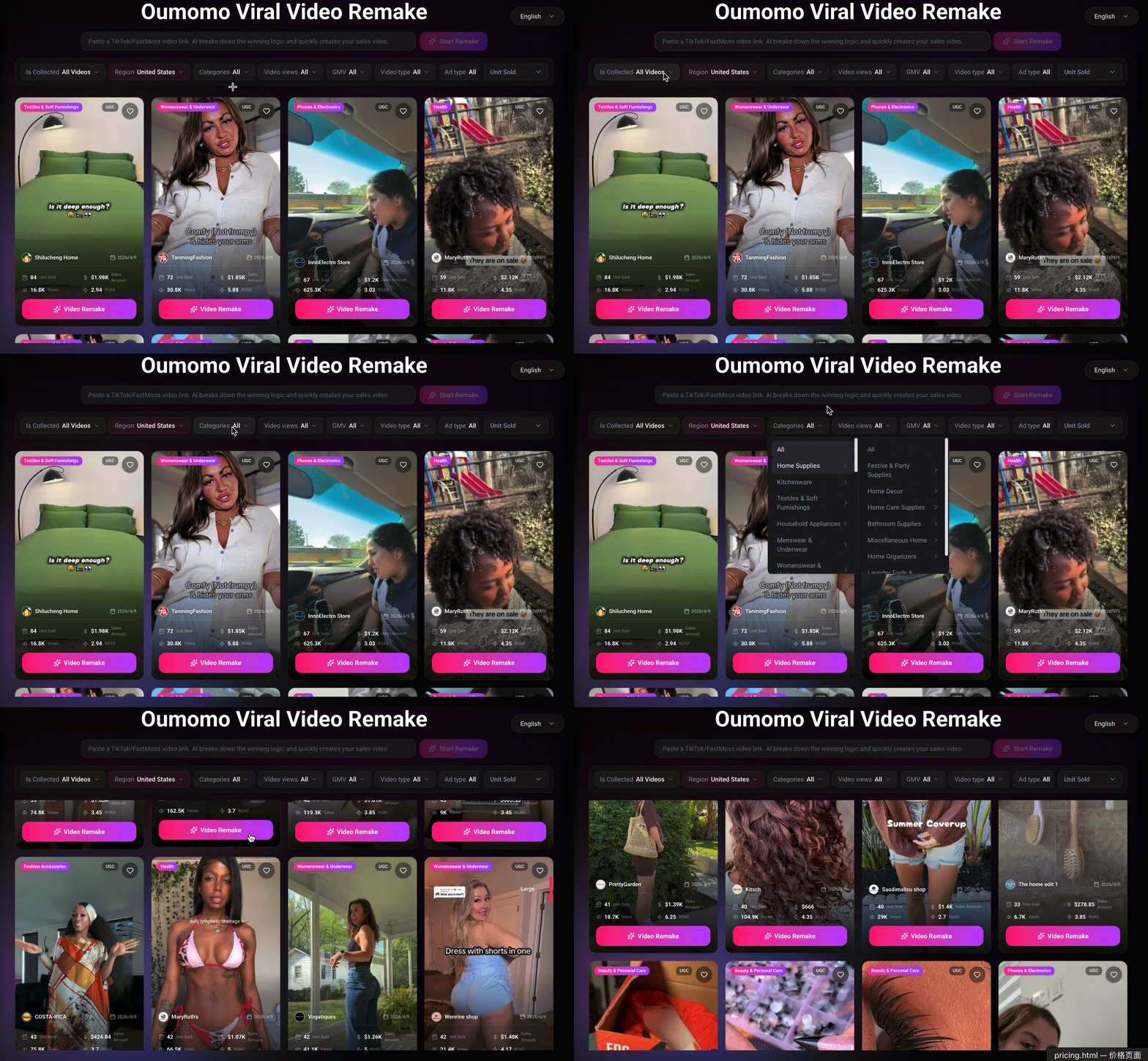
Method 2: Browse the Database
Browse and filter our winning video database. Once you find a video you like, click the "Start Remake" button at the bottom of the video card.
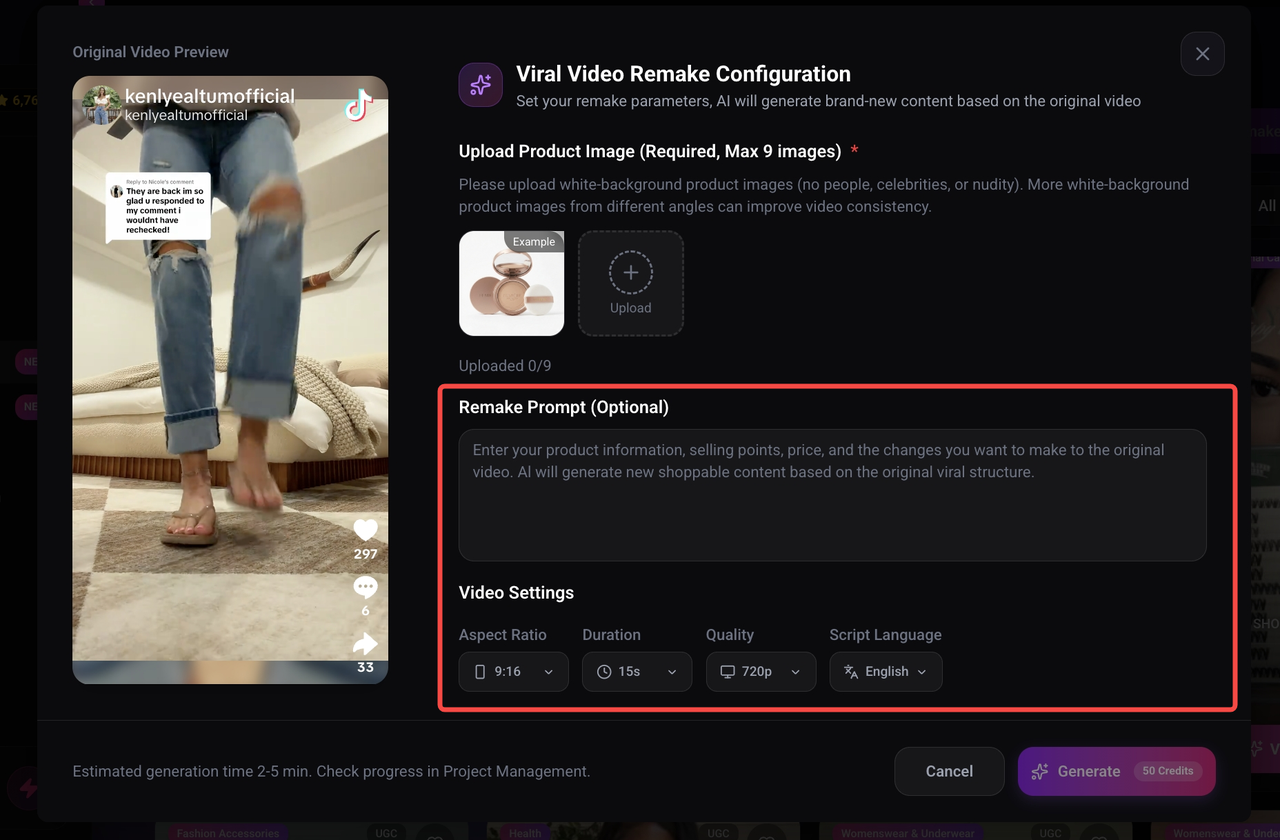
• Left side: Displays the reference video you selected.
• Right side/area: You can upload product images.
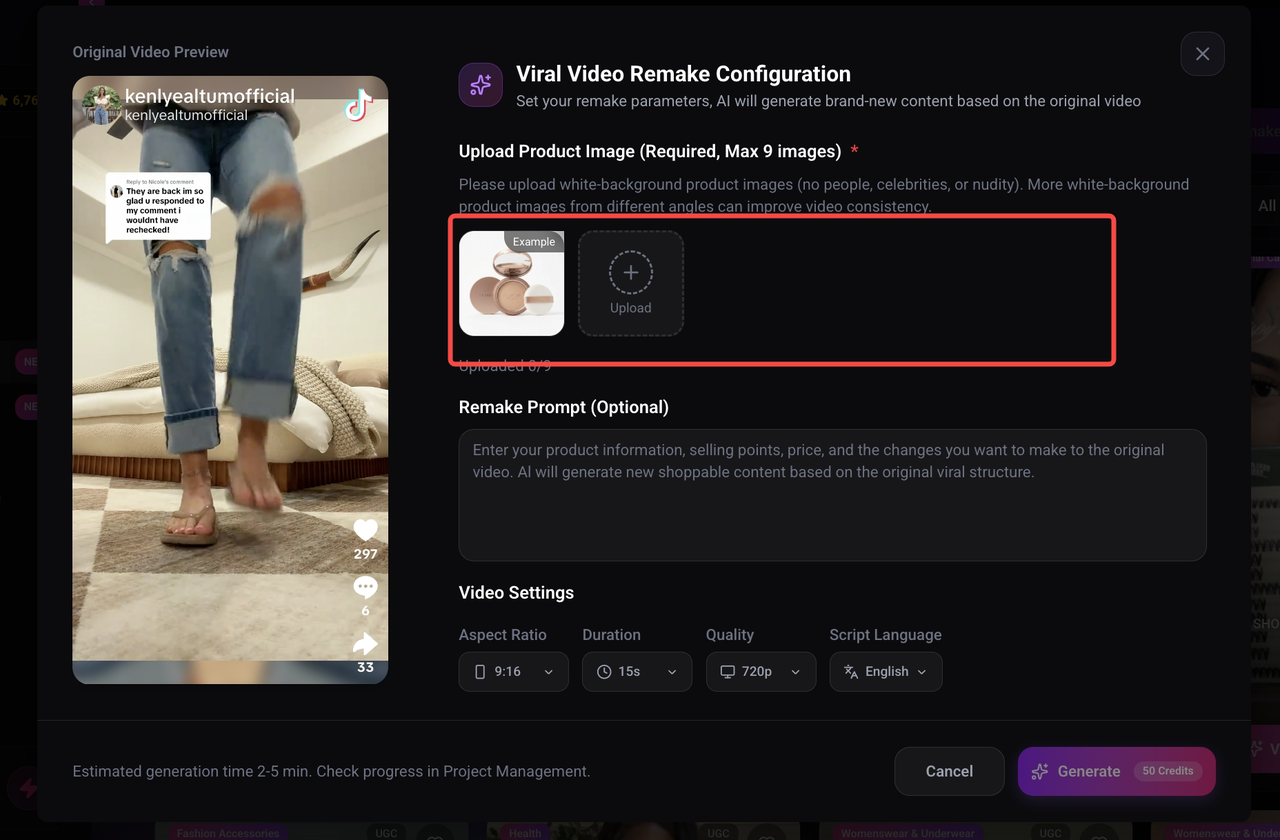
Product Image Upload Requirements
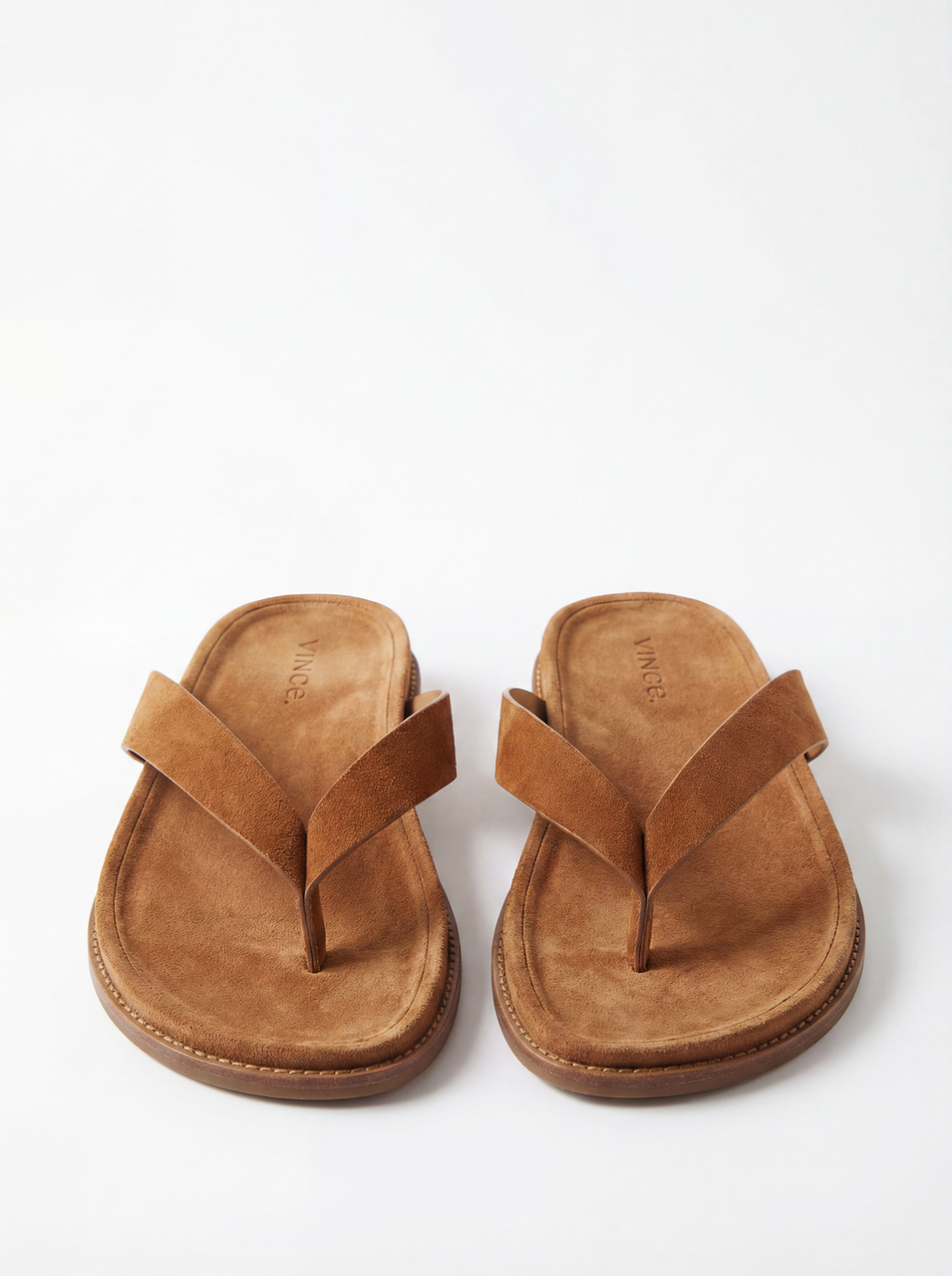
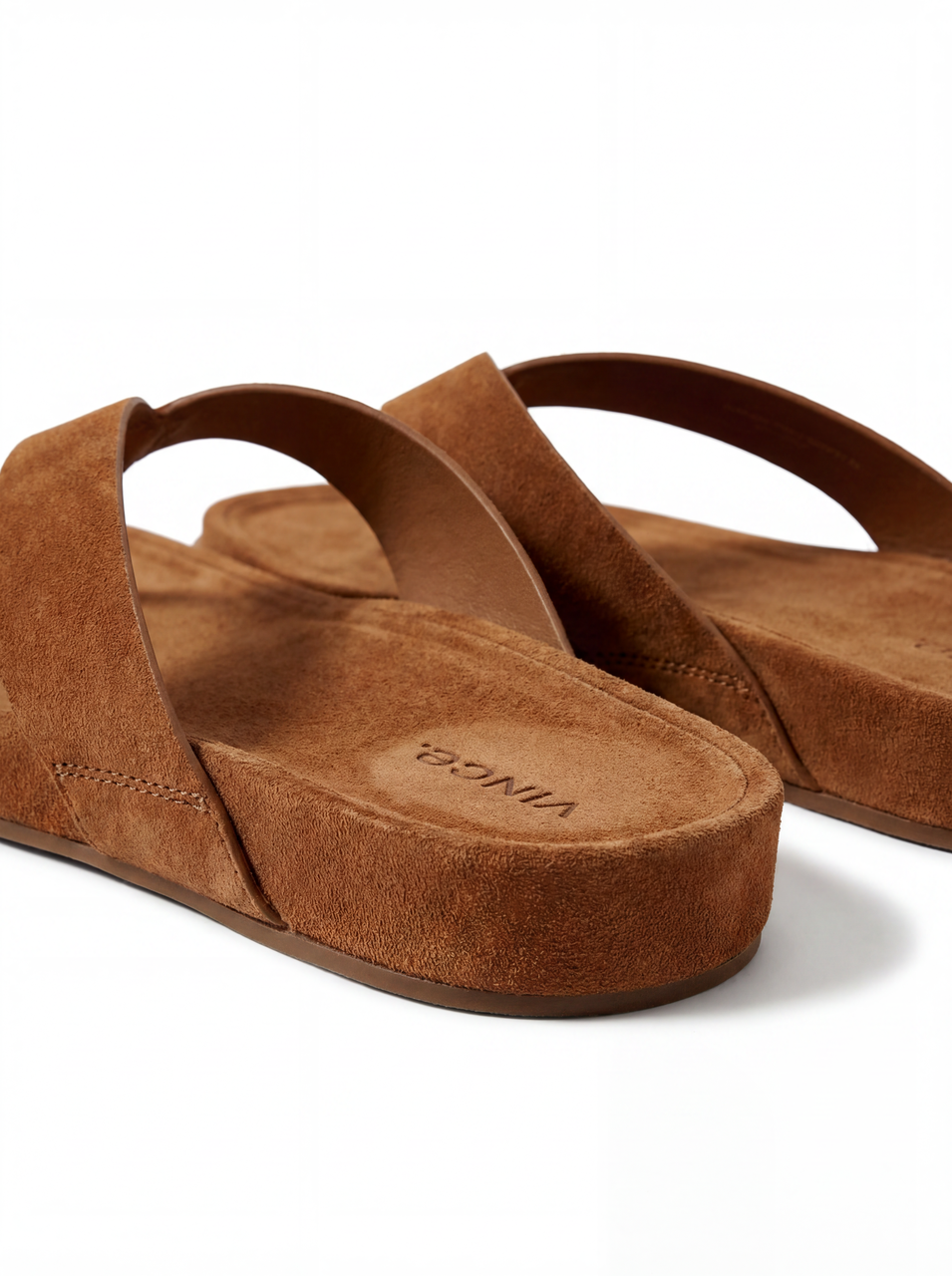
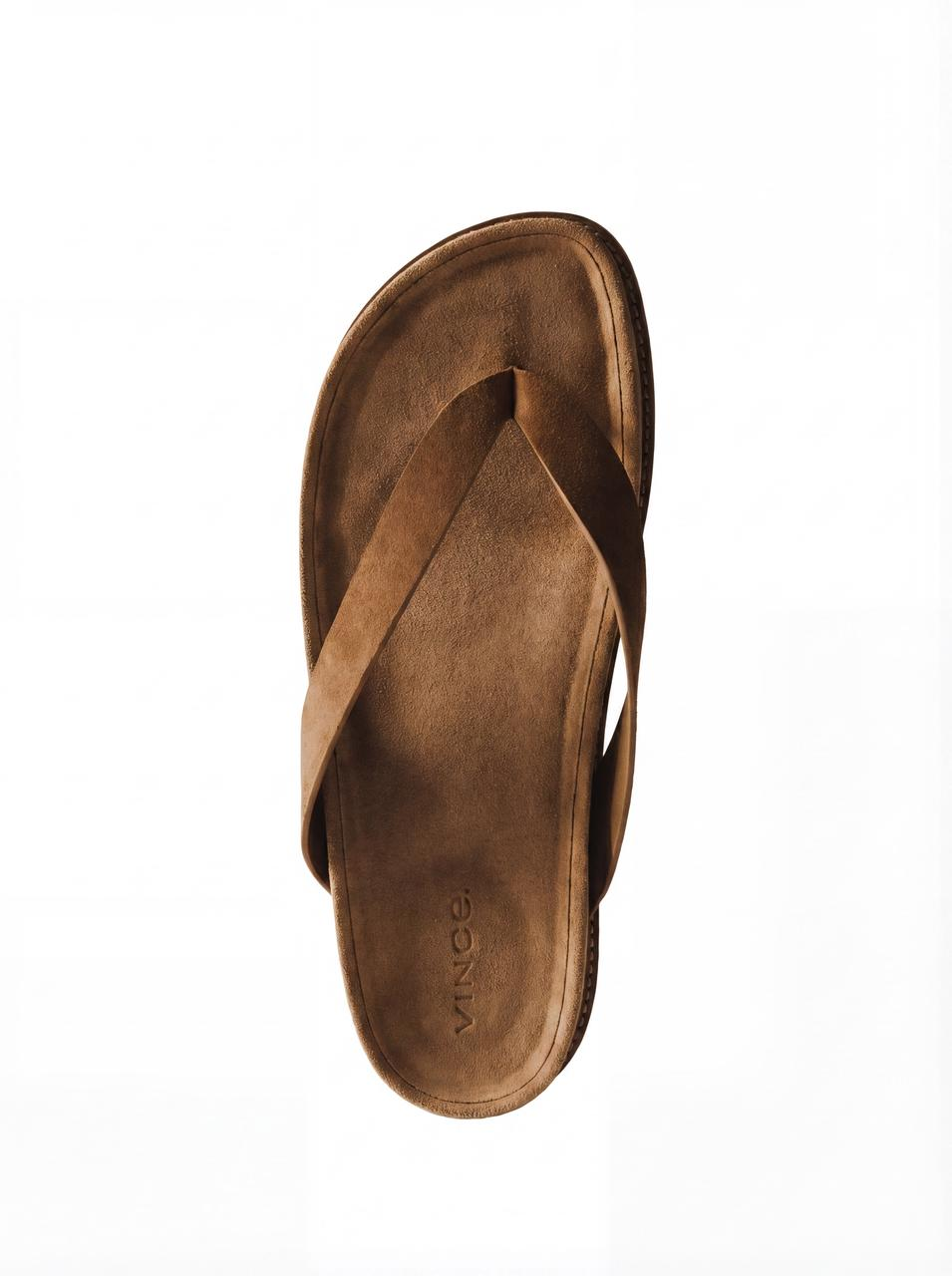
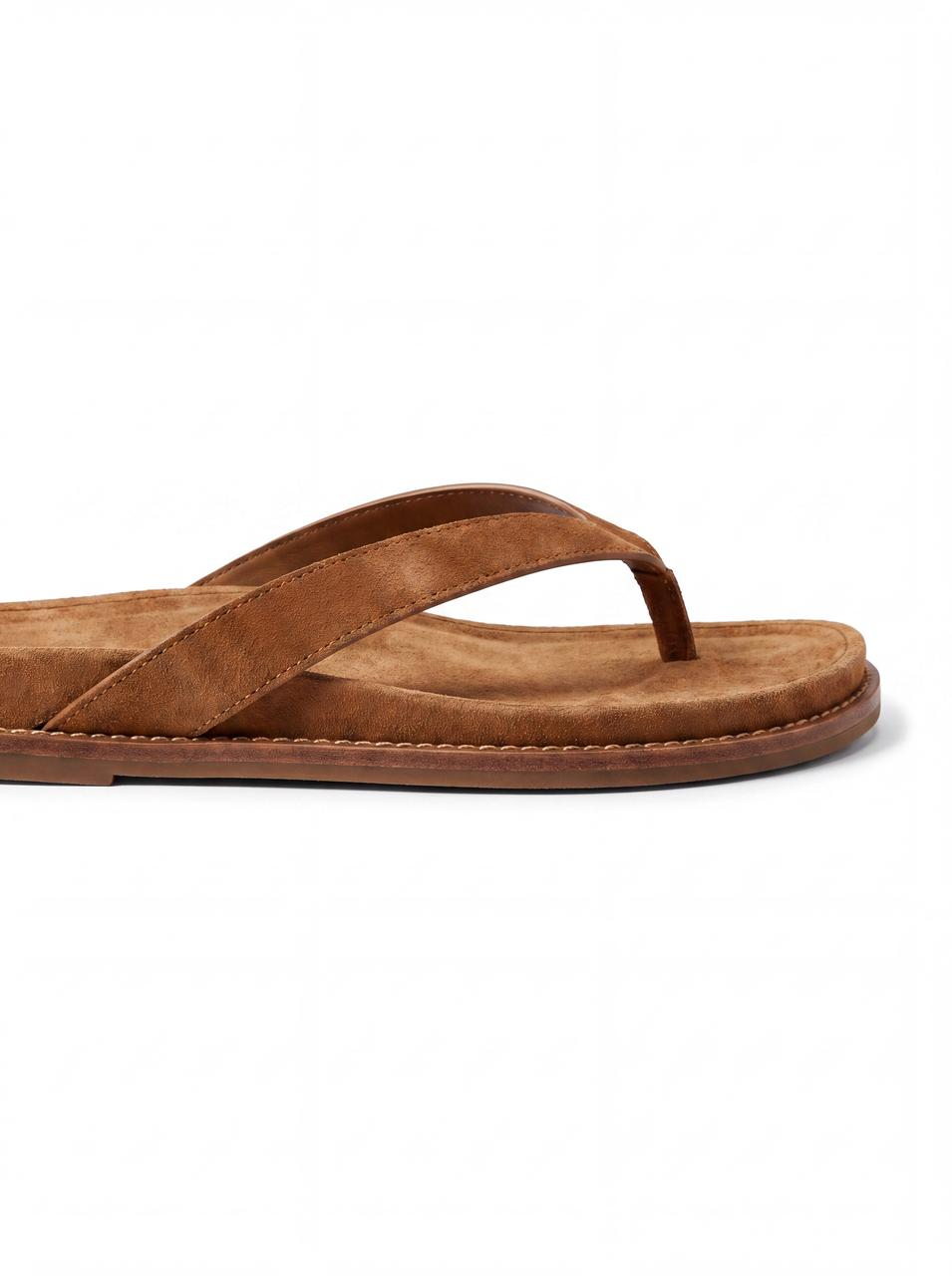
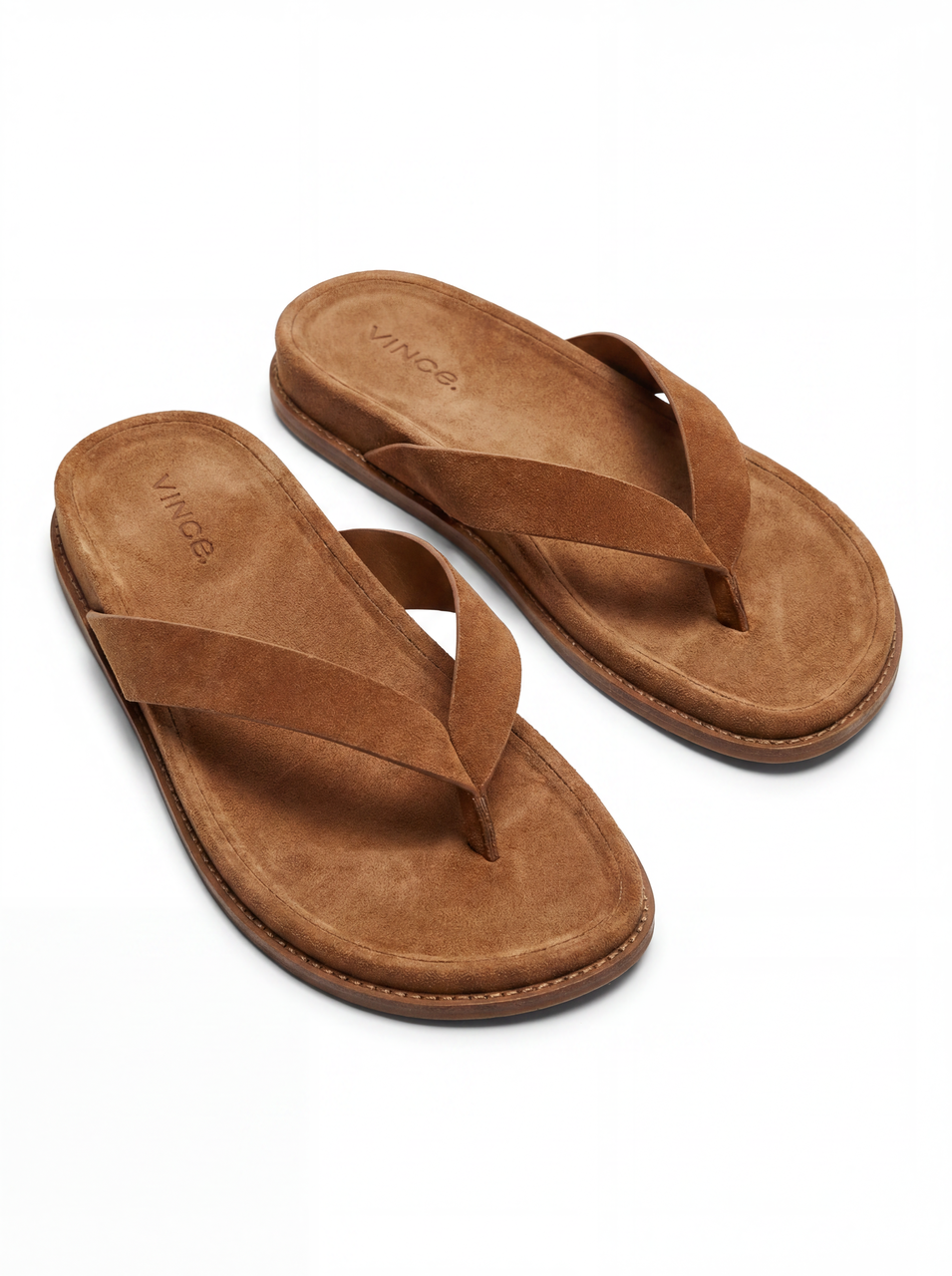
- We recommend using product images with clean white backgrounds. Ensure images are clear and show the product clearly.
- Upload multiple angles of the same product to make the product presentation in the video more realistic.
Examples of High-Quality Product Images:
In the text field
Enter product details and any video elements you want to modify.
In the dropdown menu
Configure video export parameters (such as resolution, duration, etc.).
Generate Video Task
Once setup is complete, click Generate to create the video task.
After the task is created, you can view its progress on the Projects page.
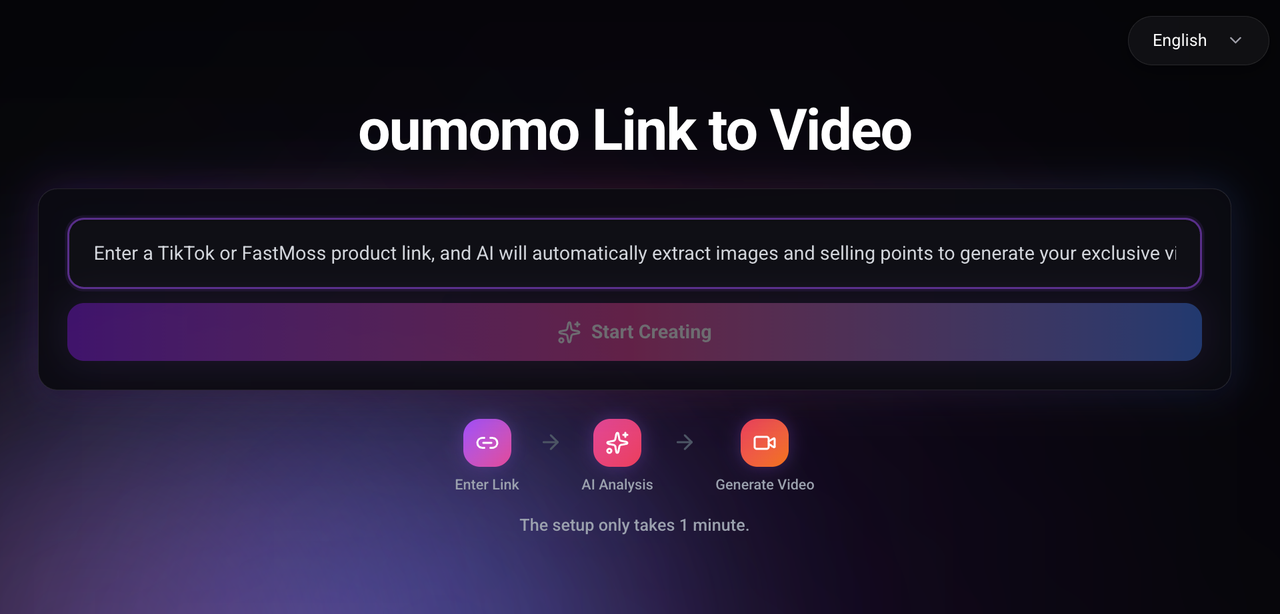
Link to Video
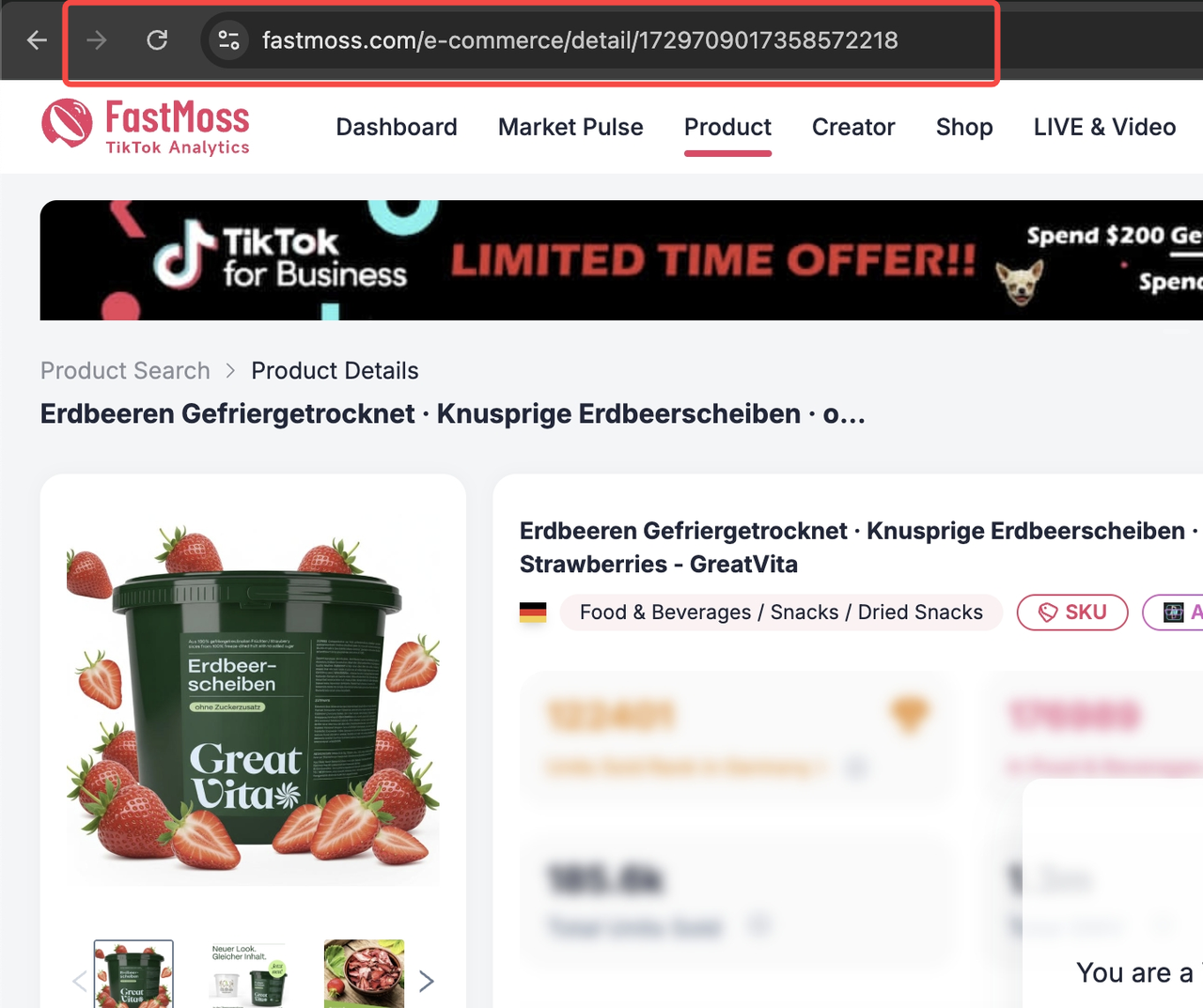
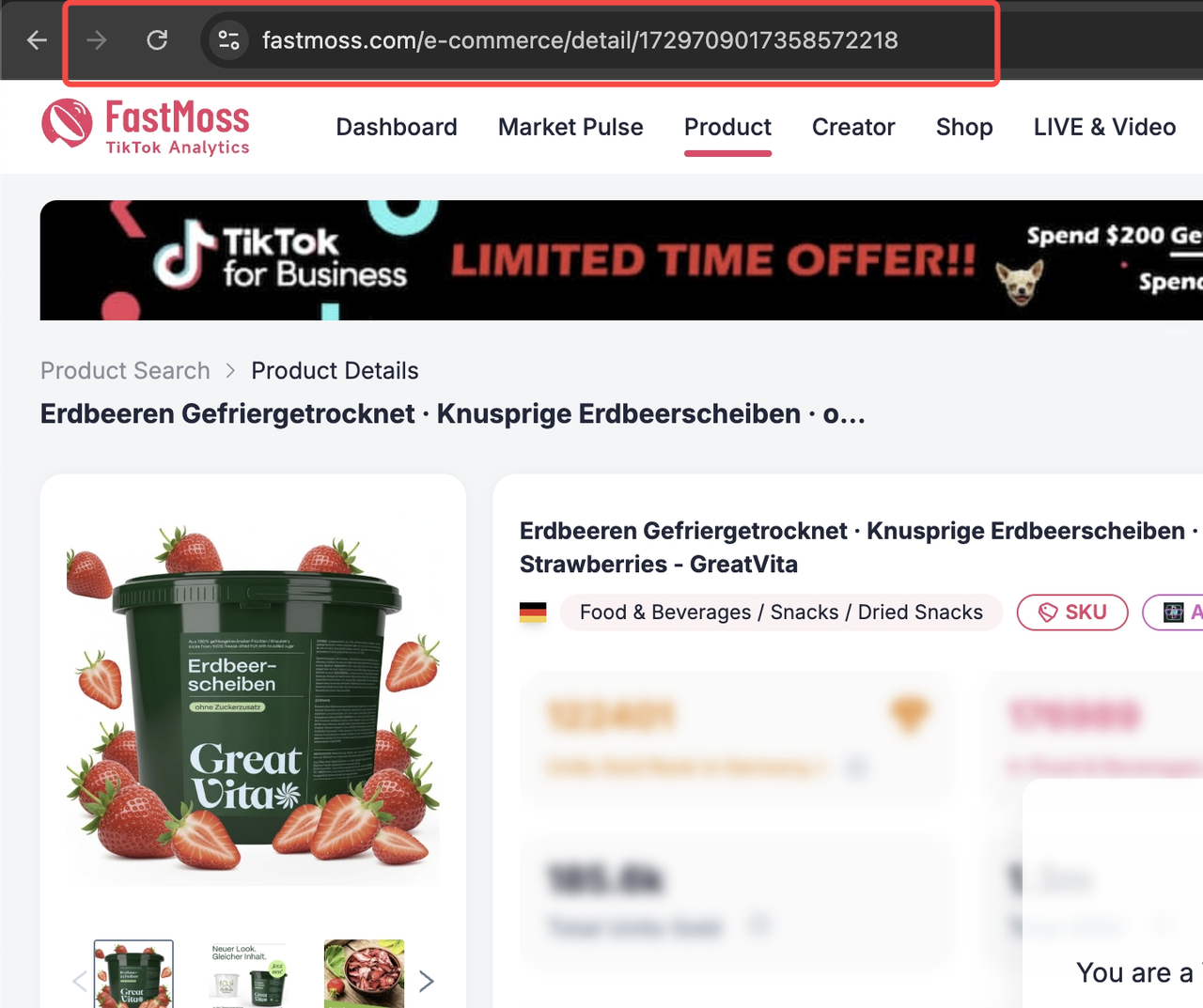
1. Paste Product Link
Copy and paste a TikTok or FastMoss product link.
2. Start Creating
Click the "Start Creating" button.
Add more visual assets for the same product.
Select a pre-made avatar or generate one with prompts.
AI generates natural spoken scripts that you can edit freely.
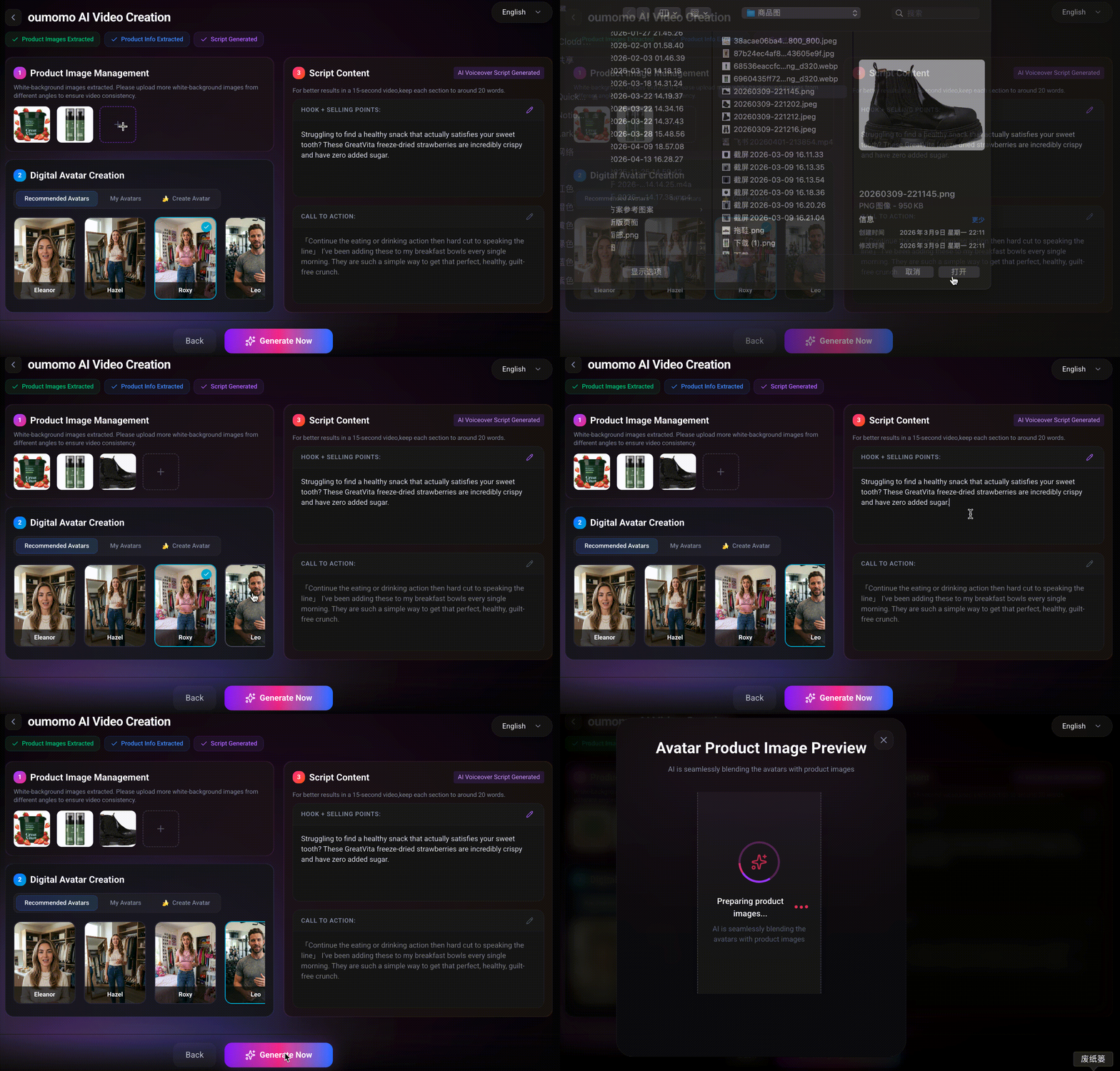
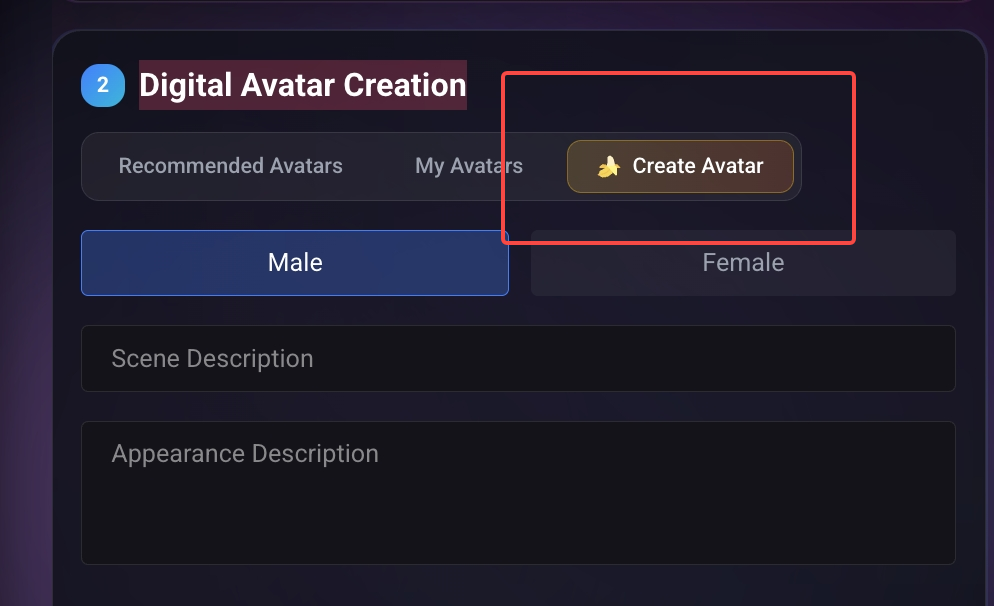
Generate Preview
The system will generate a preview image of the avatar holding the product, showing what the final video will look like before you submit the task.
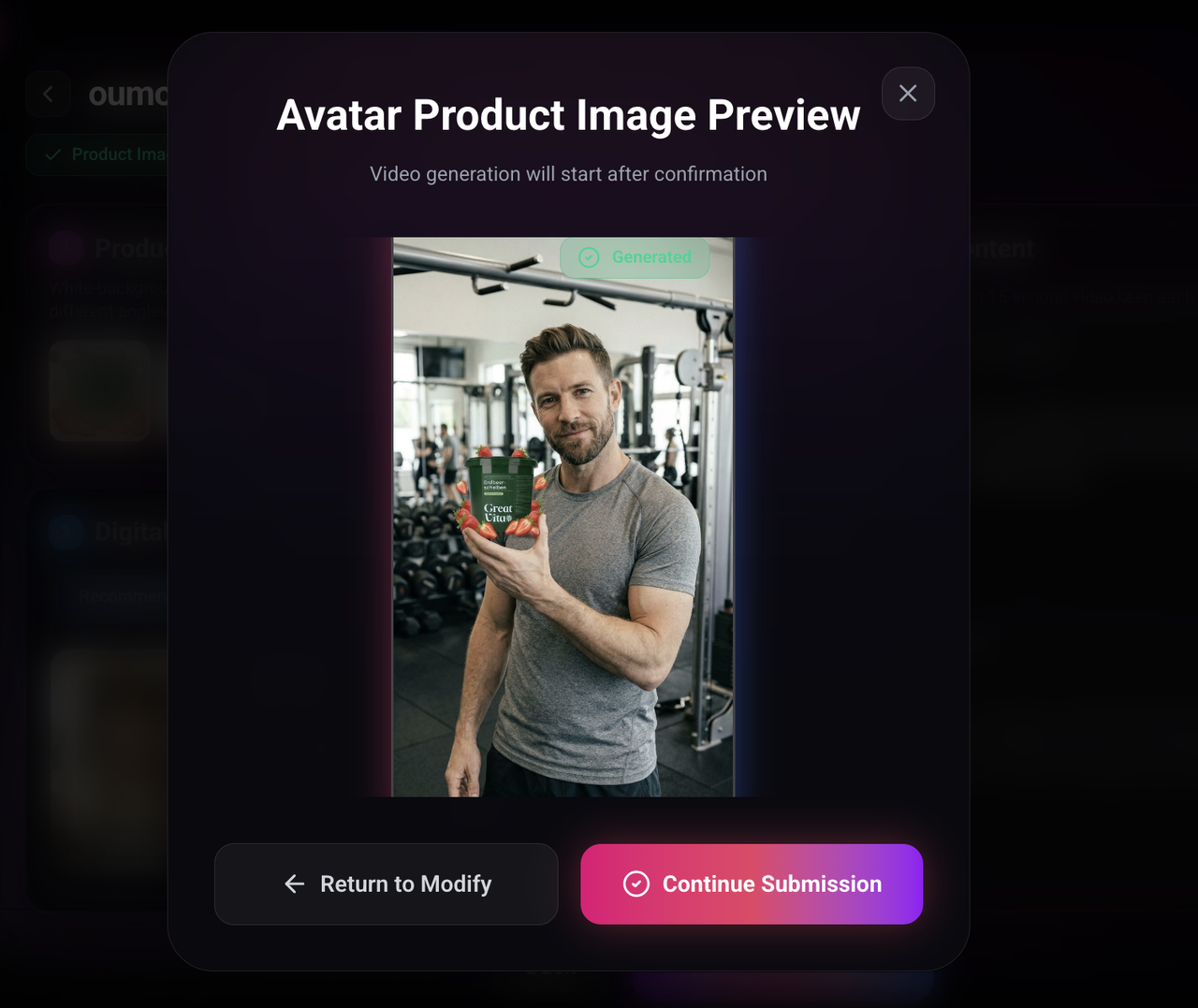
Satisfied: Continue and Submit
Unsatisfied: Go back and edit
Viral Script Generator
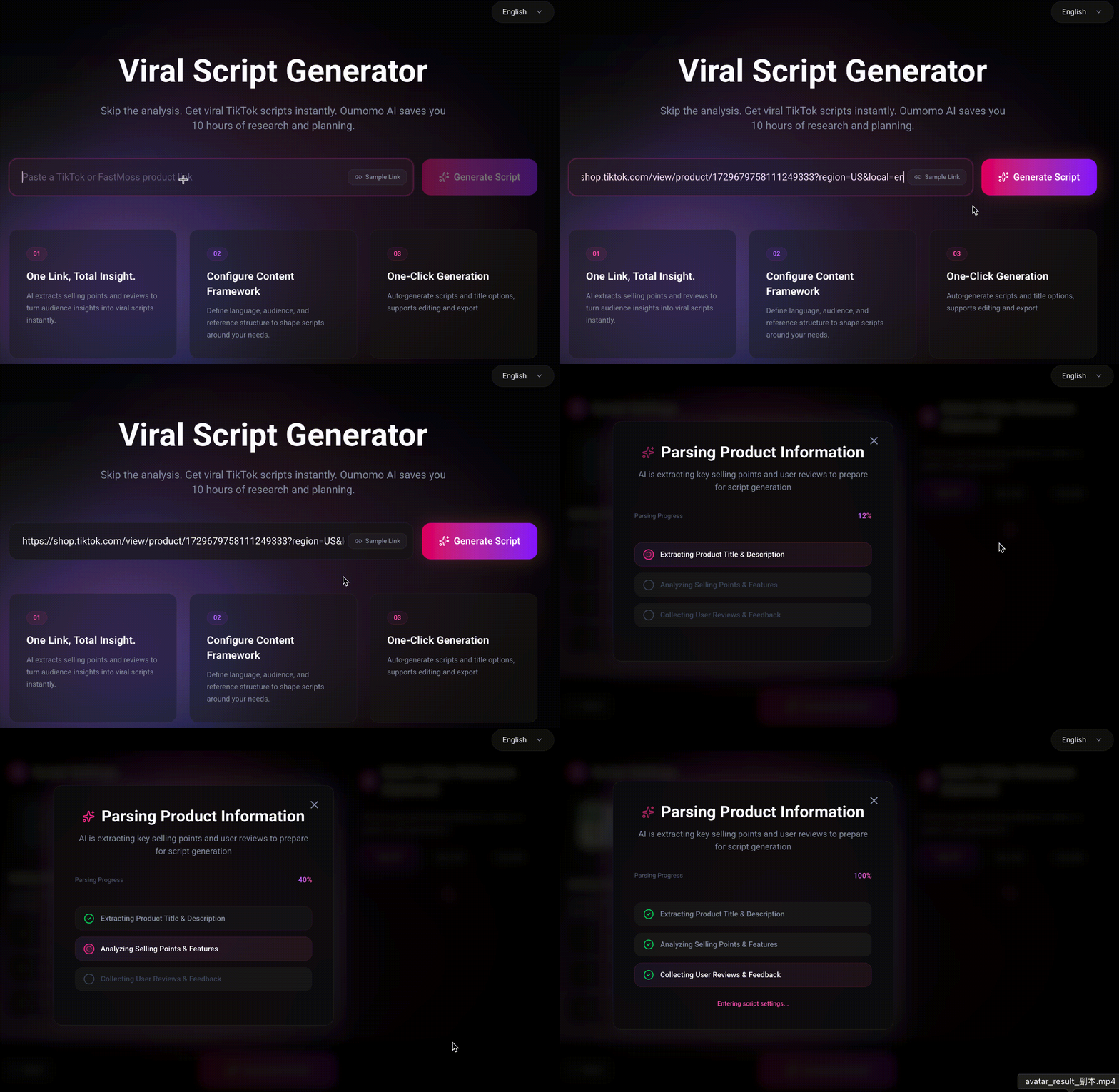
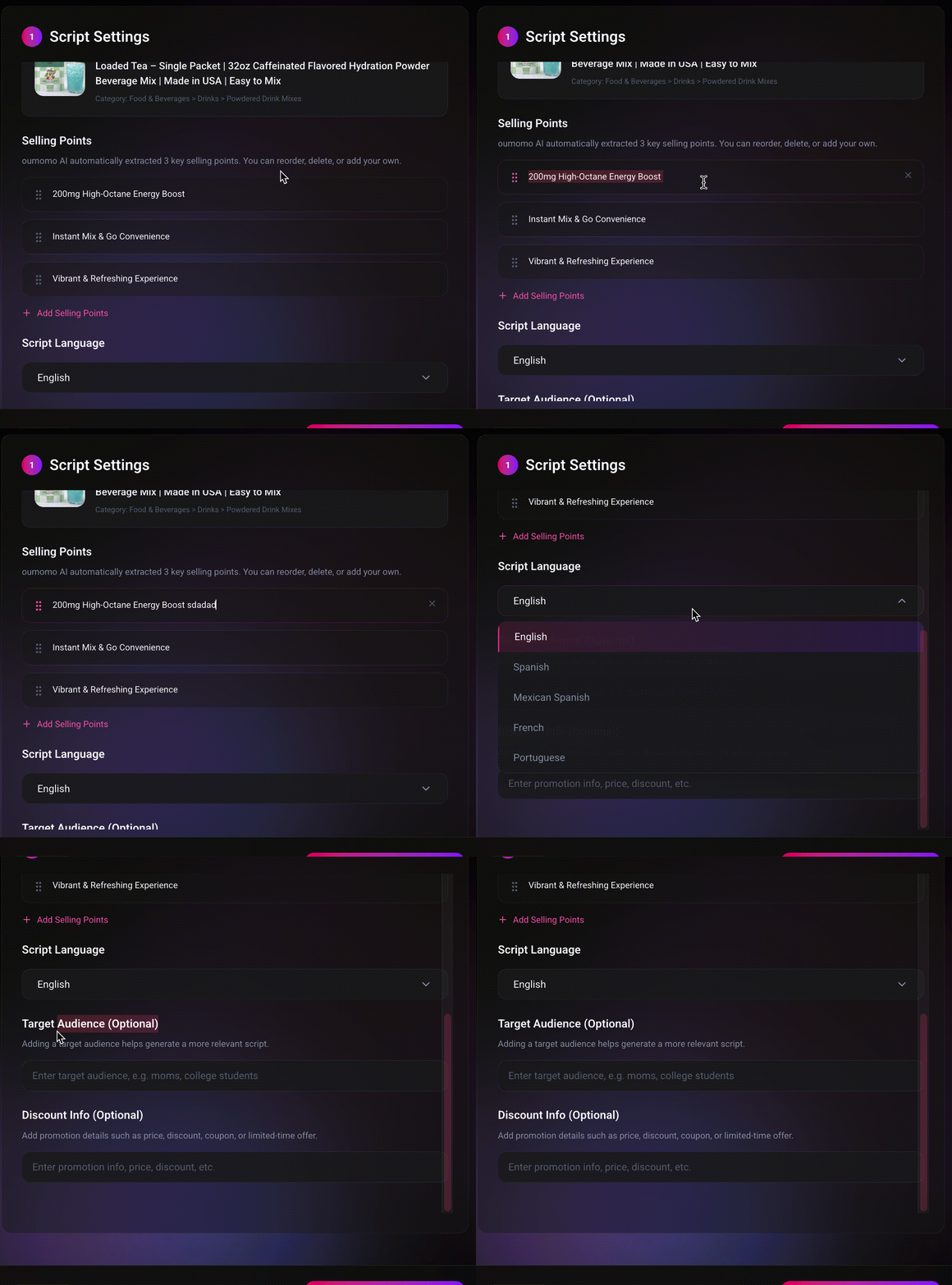
Script Generation Settings
• Product Selling Points
Automatically extracted or manually customizable.
• Target Audience
Configure audience details to better tailor the script.
• Output Language
Supports one-click generation in multiple languages.
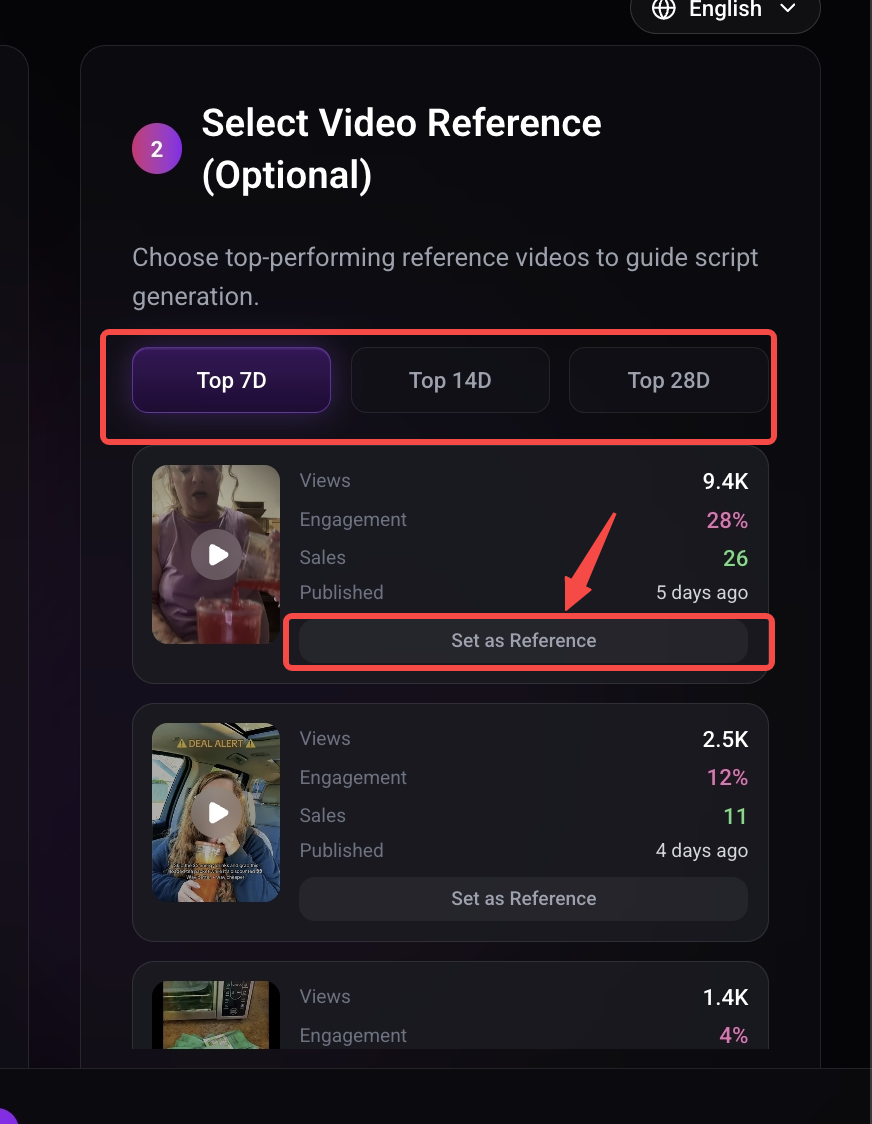
Select a Viral Reference Video
Oumomo selects the best-performing viral videos from recent data of similar products (filter by TOP 7D / 14D / 28D).
You can set a preferred video as a reference, and the new script will match its structure.
Publishing & Optimization
1. TikTok Publishing
Homepage Entry
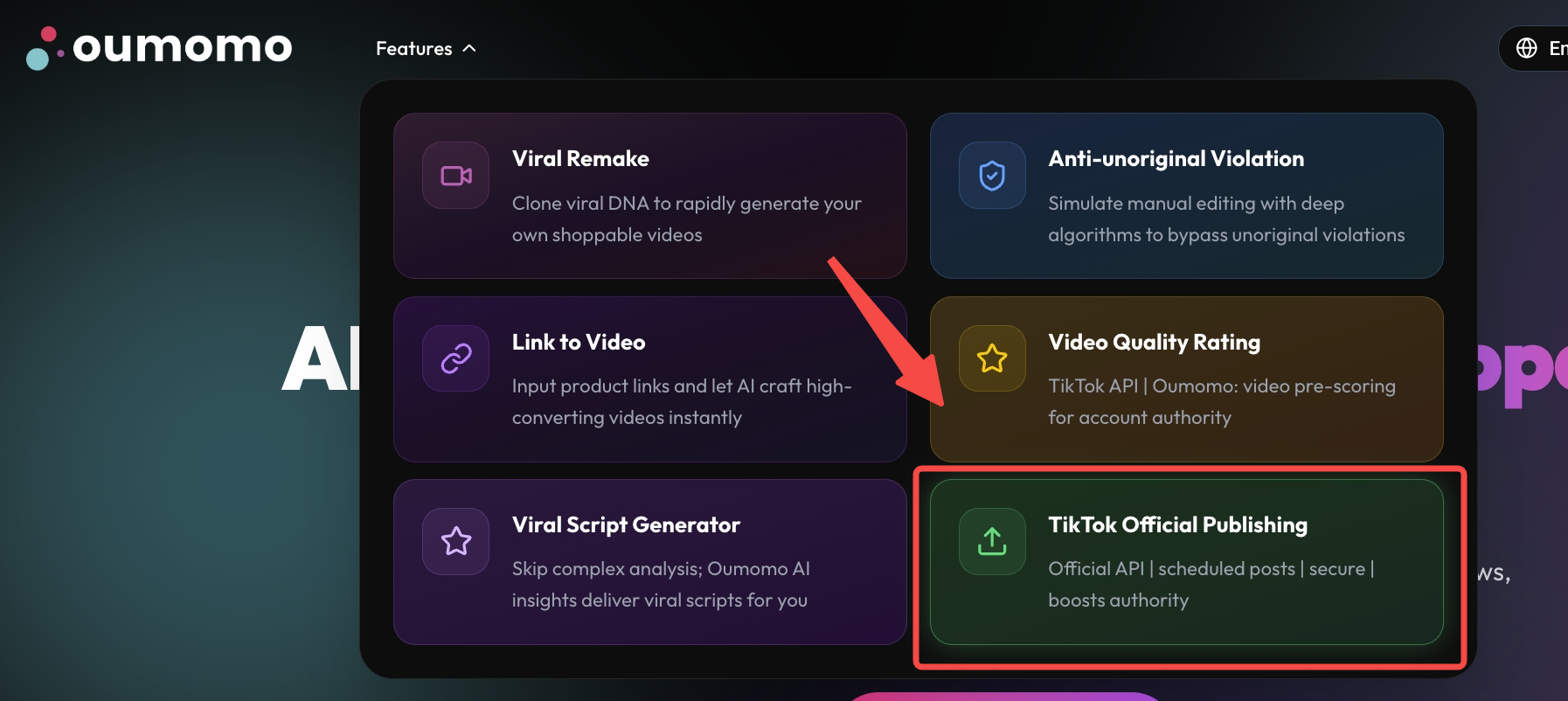
Creator Center Entry
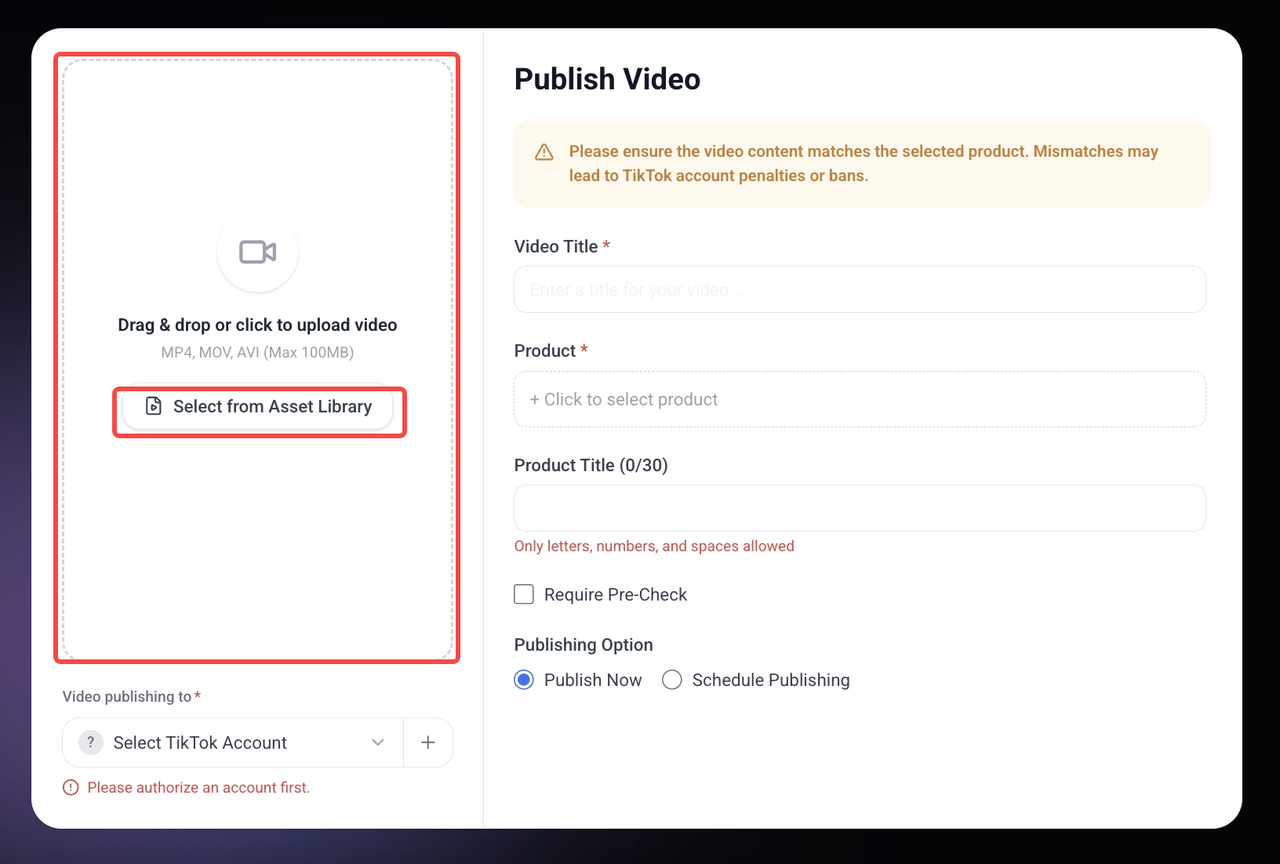
• Upload Video
Local Upload
Click to select local file
Select from Asset Library
Select from videos created in Oumomo
• Bind Account
Click the plus (+) to bind an account. If already bound, select the target account from the list.
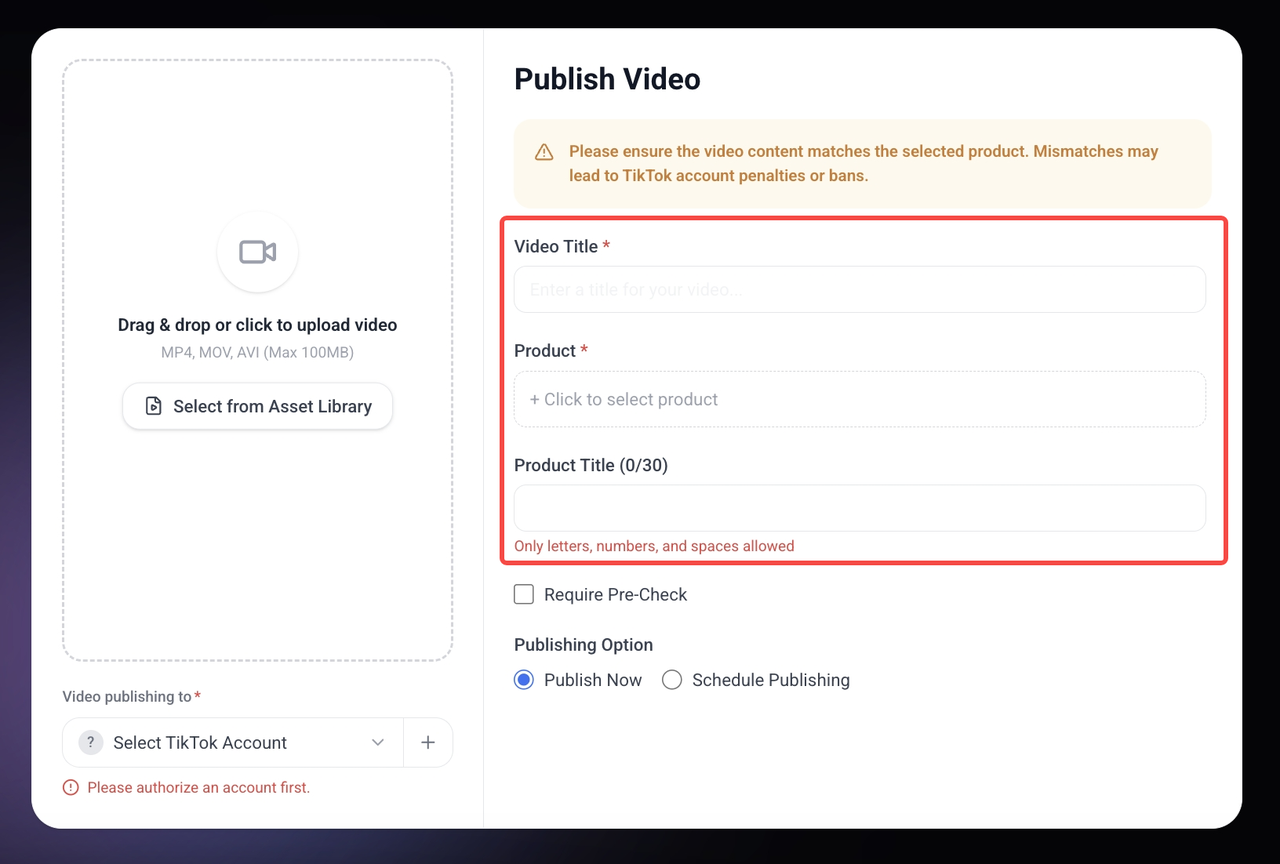
• Fill in Details & Select Product
- - Enter Video Title (Required)
- - Select the product to promote (Required)
- - Enter Product Name (Optional)
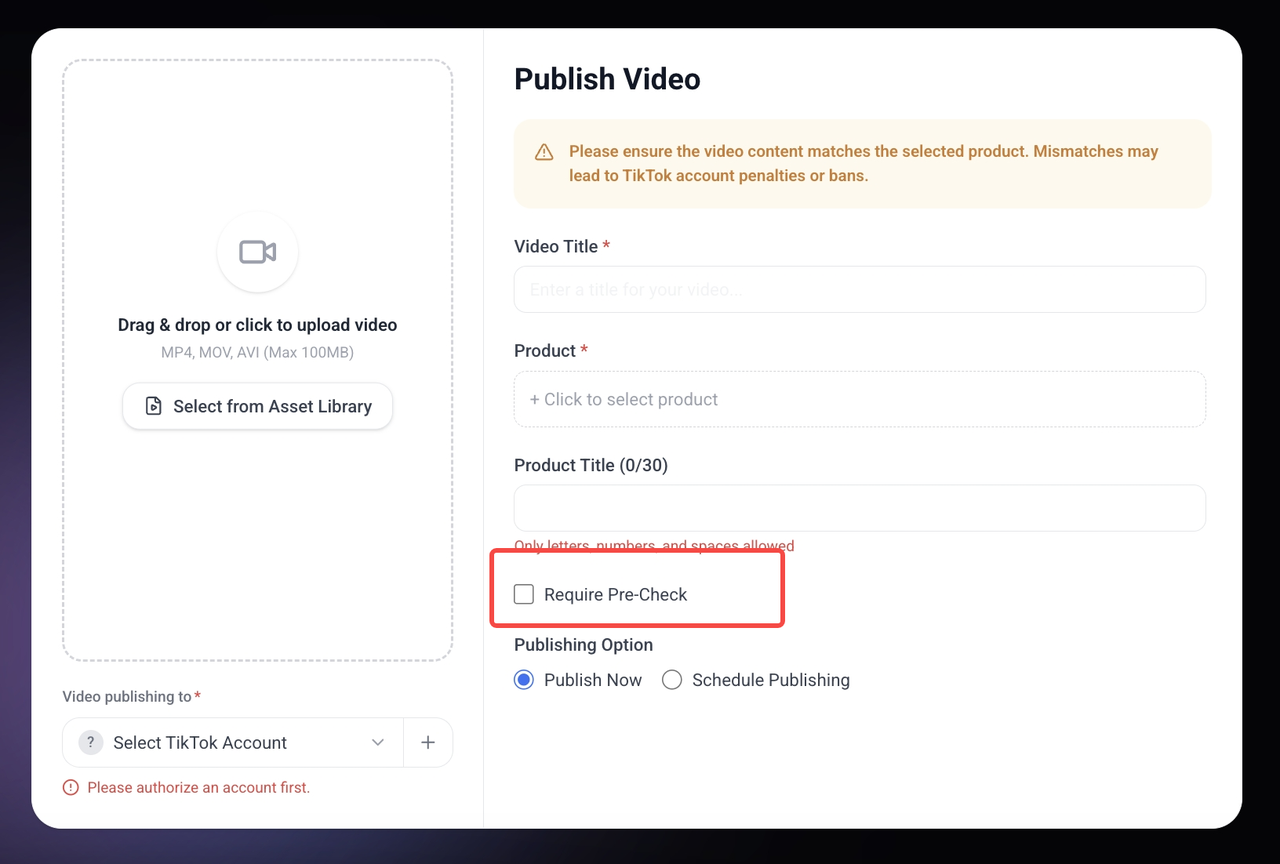
Pre-check
Before publishing, you can choose to pre-check the video content. Our detection uses TikTok's official API to help you avoid violations that could lead to account penalties. However, this is not mandatory — you can also publish the video directly.
* Optional step. You can also choose to publish directly.
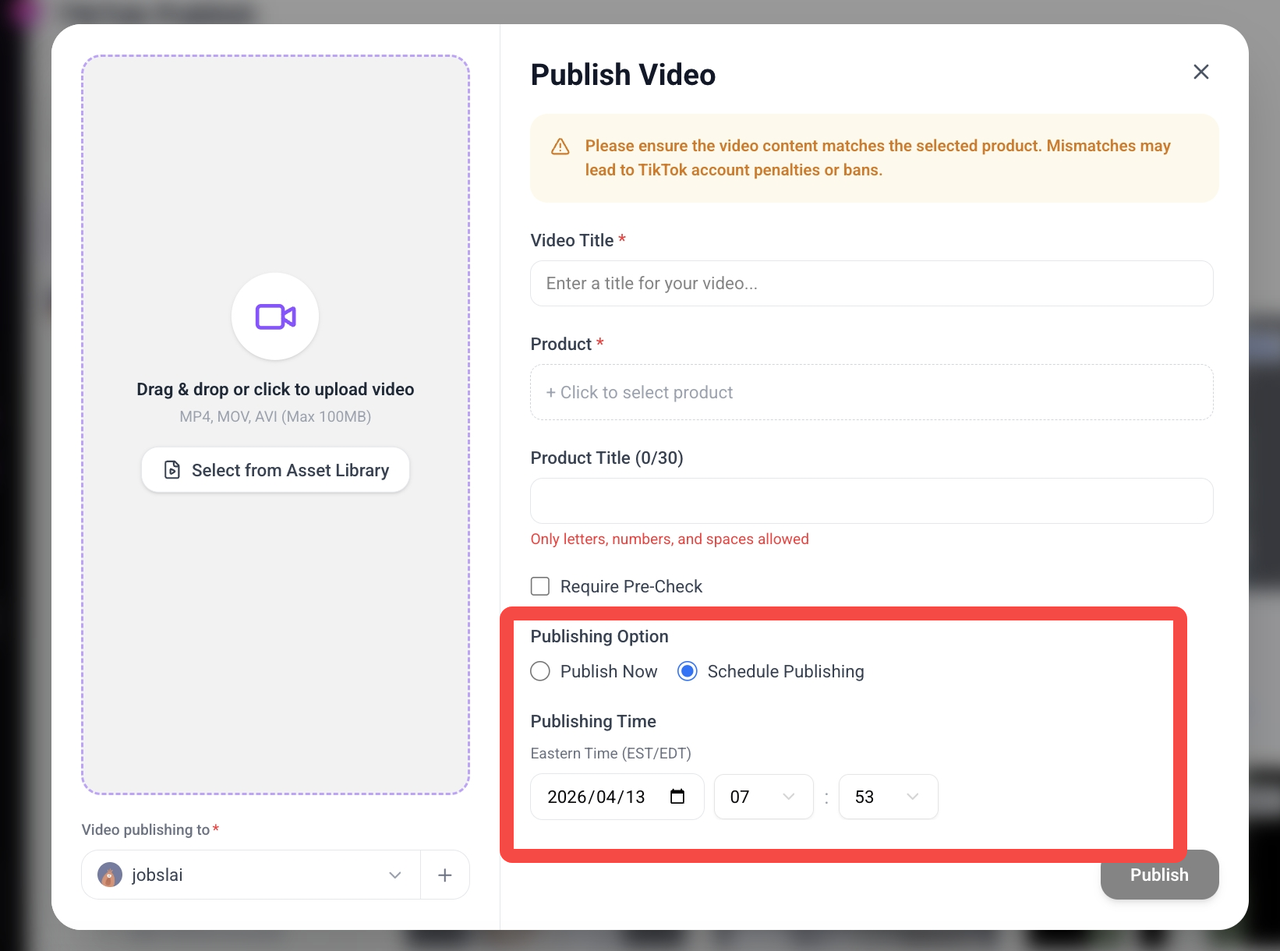
• Publish Time Settings
Publish Immediately
Default state. Click Publish to post right away.
Schedule Publish
Configure time zone, date, and time for automatic posting.
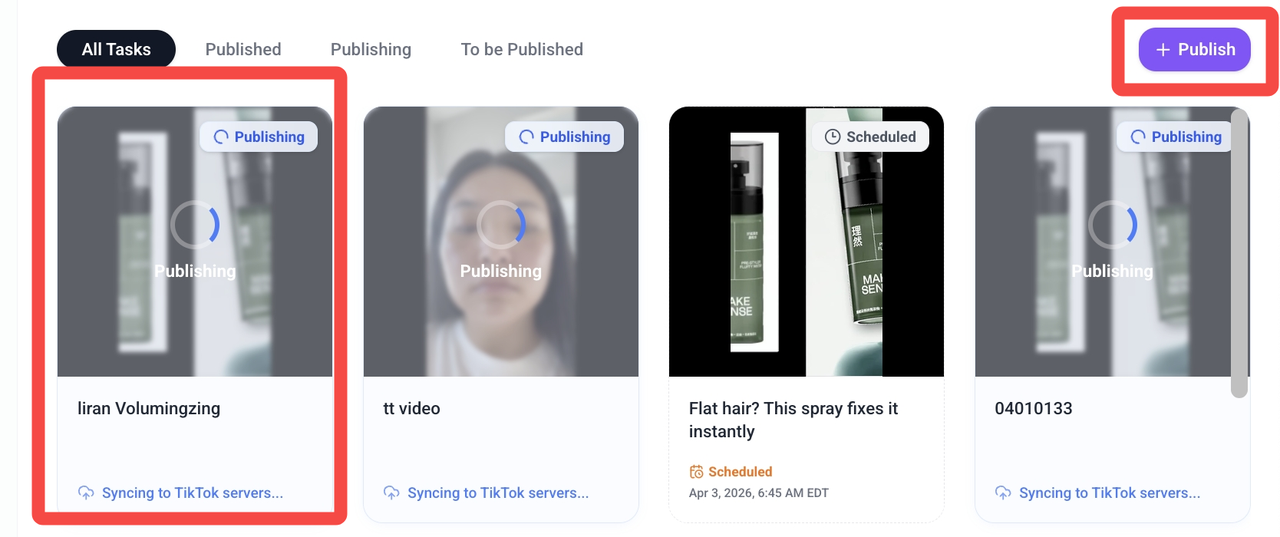
• Publish
Click the "Publish" button to create a new publishing task and add a new task card to the task list. When you want to continue publishing videos, you can click the "Publish" button in the upper-right corner to proceed.
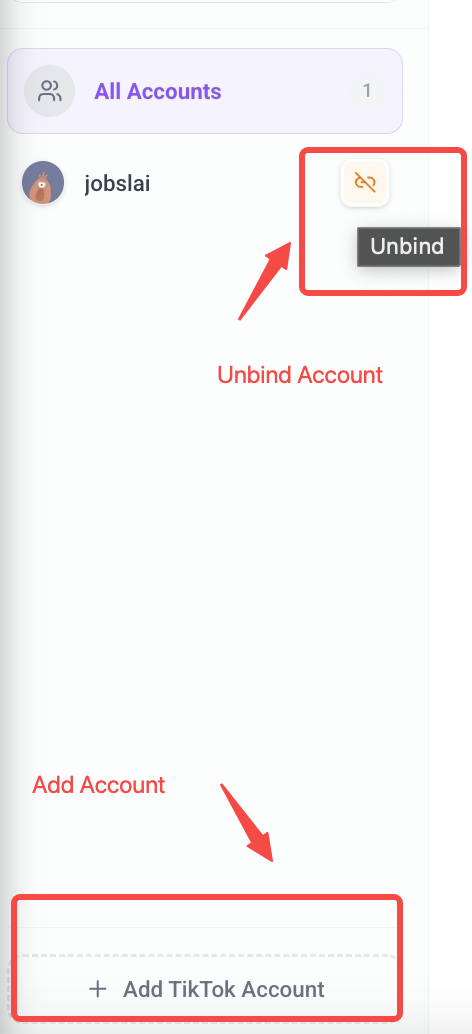
Account Management
The left side shows the account list, and the right side displays details and status of published tasks.
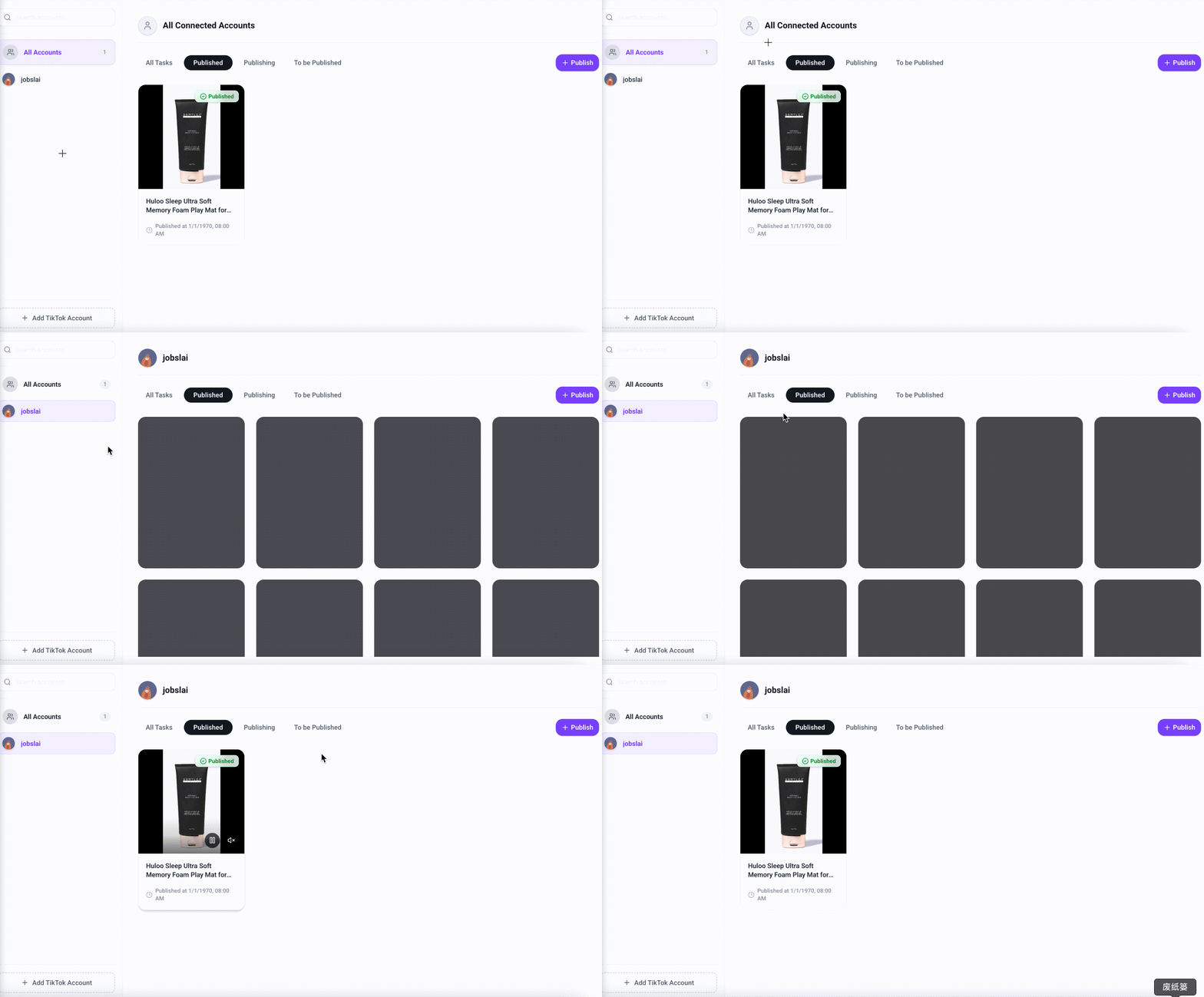
Add Account
Click the Add TikTok Account button.
Unbind Account
Click the trash can/icon on the right side of the card.
Note
- • The bound account must be a creator account with the Showcase (Product Display) feature enabled.
- • If QR code login fails, click "Login with TikTok" and select "Log in with QR code".
If binding fails, please check:
- 1. Ensure the account has e-commerce eligibility and Showcase enabled.
- 2. Log out of conflicting TikTok accounts in your browser and re-authorize.
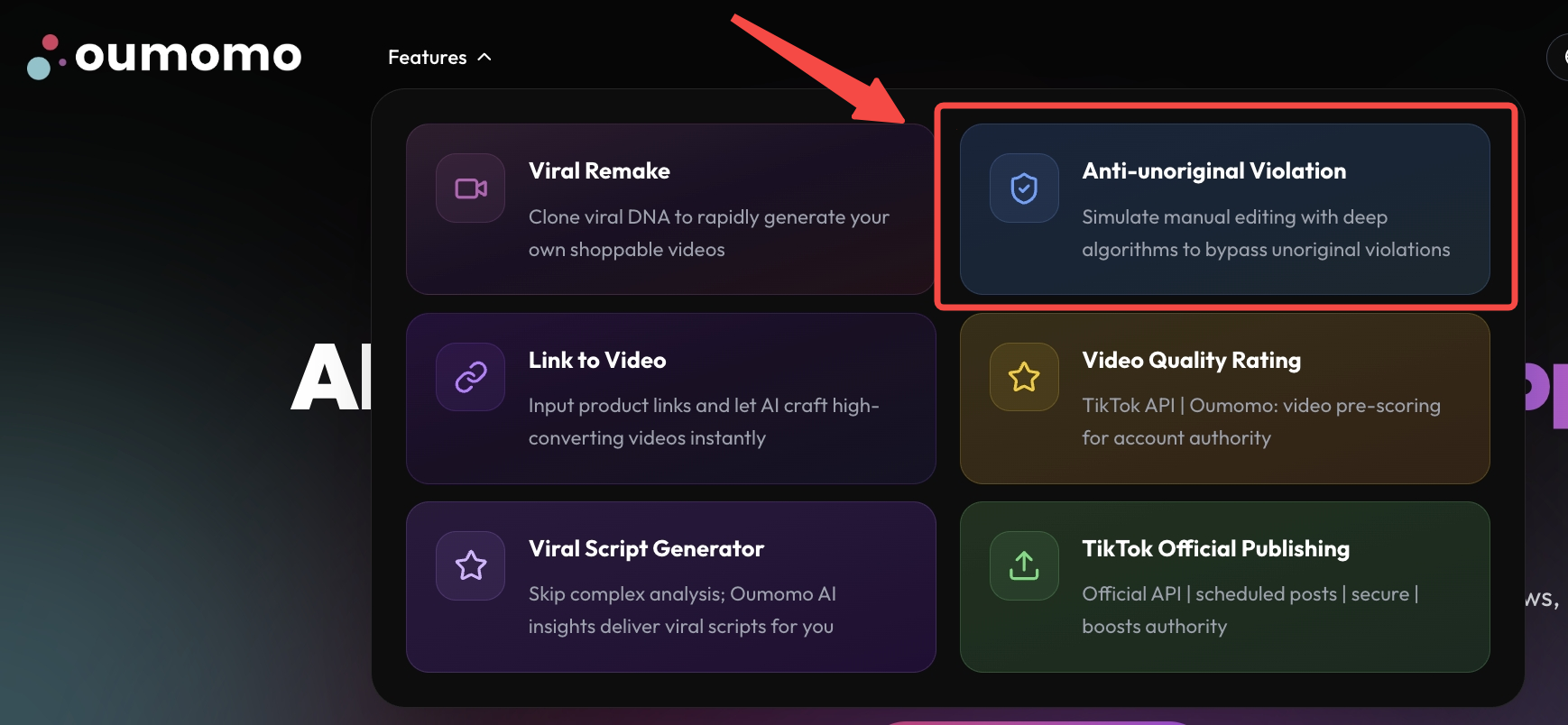
2. AI Smart Deduplication
Homepage Entry
Creator Center Entry
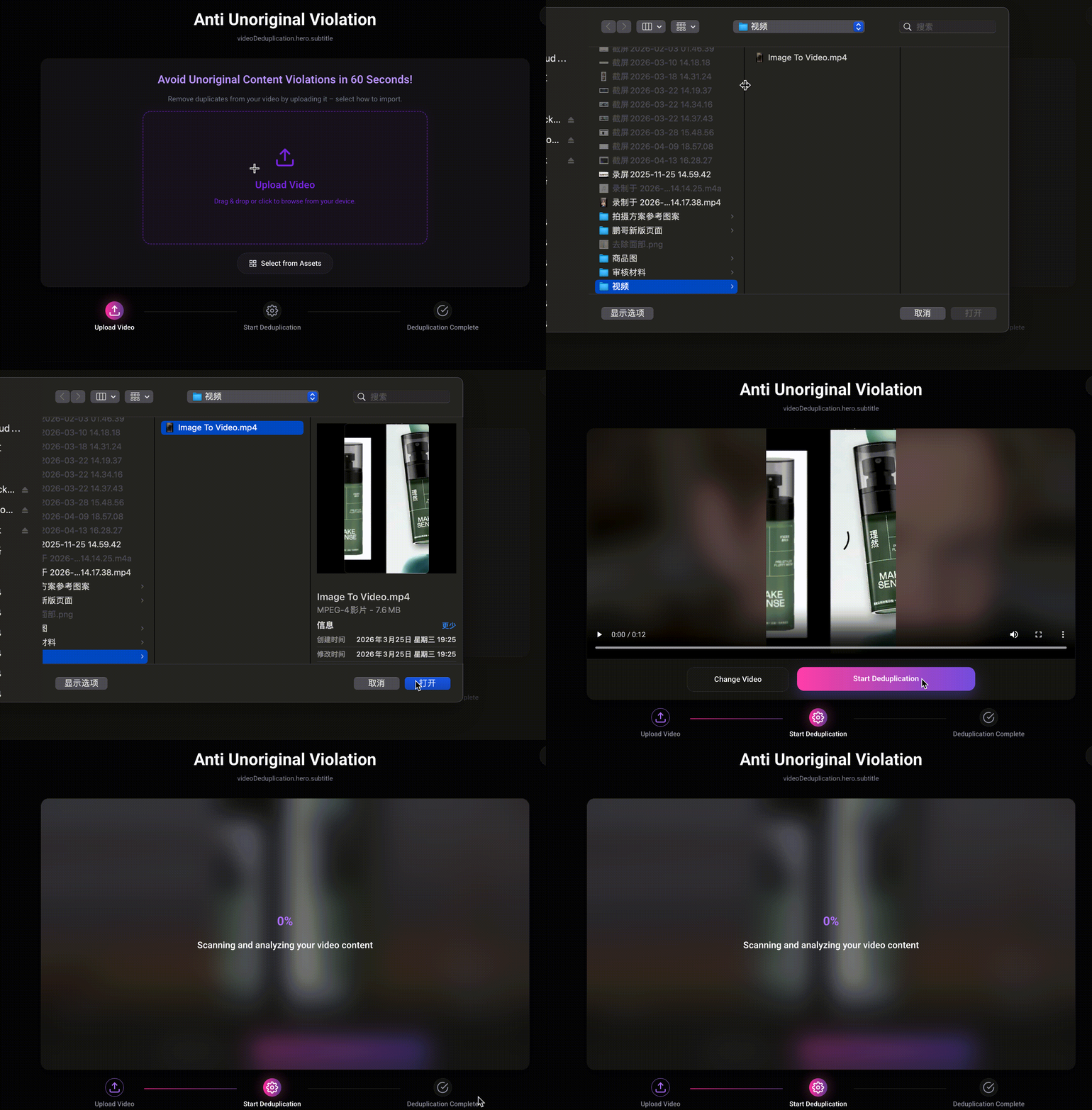
Simply upload a local video or select an asset created in Oumomo, then click "Start Deduplication" to remove duplicates.
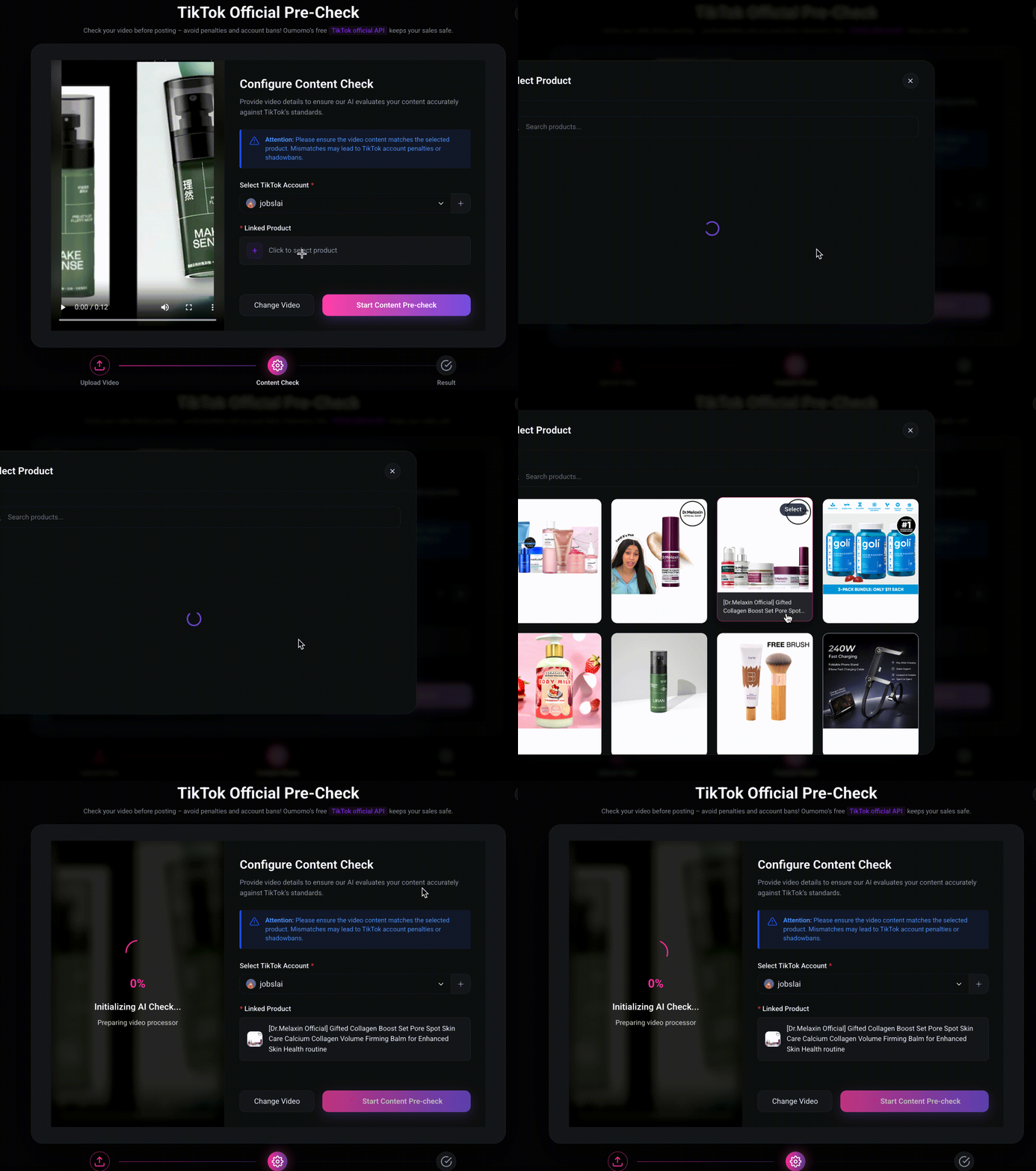
3. TikTok Official Pre-Check
Get Video Score in 3 Steps
* This feature requires a bound account and that the product matches the video content.
Detection Results Explanation
The system primarily checks your video content, including:
- Whether it's original content
- Whether it contains false or misleading promotions, etc.
There are only two possible results: Pass or Failed
Pass
You can publish the video directly. The content will not cause your account to be penalized.
Failed
We recommend you do not publish this video. If published, it will cause your account to be penalized.
We use the official TikTok API, so the results are exactly the same as TikTok's official results.